
Write an Issue (element mode)
When you finish editing styles and click Next, the issue draft opens. Just fill it in top to bottom.
1. Title
Your configured title prefix (e.g. [QA] ) is pre-filled. Type the rest of the title after it.
2. Environment
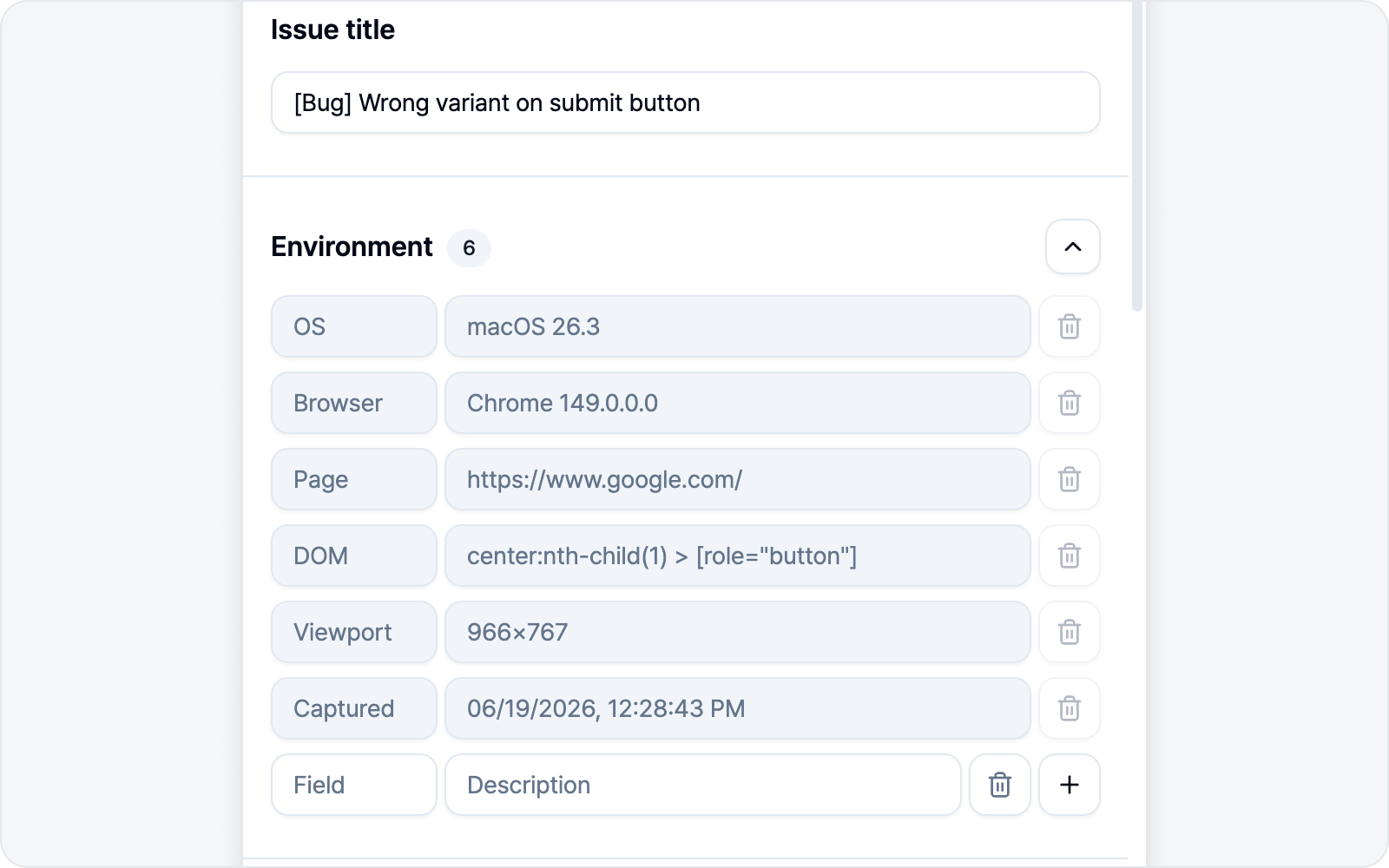 Environment
OS, browser, page URL, viewport size, and capture time fill in on their own (read-only). Want to add more context? Just drop in a variable row yourself.
3. Media — before/after style table
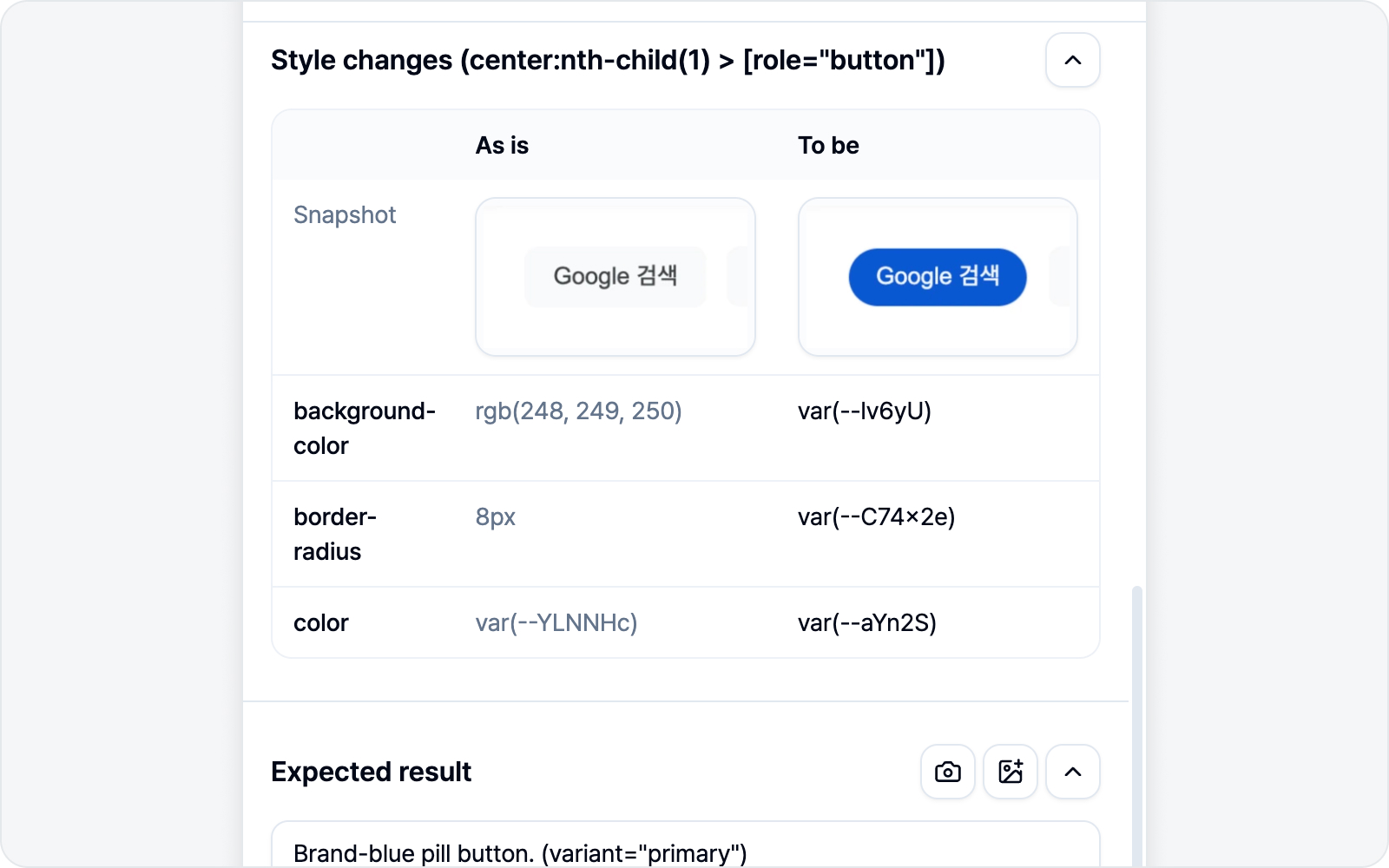 Before/after style comparison
This is the heart of element mode. The before and after styles are captured as a comparison table, so which properties changed to which values is clear at a glance. The reader grasps "what to change and how" from a single table.
If you bundled several elements back in Styling, each one gets its own table — laid out in order under its selector heading.
You can annotate the before and after images right in the table. The capture widens to the container around the element you picked, so several elements often share the frame — and sometimes you need to say "it's this button's padding". Hover an image and an Add annotation button appears in the top-right corner. It opens the same editor as Screenshot annotation: draw an arrow or a shape, then hit Done. Before and after are annotated independently, and once an image has an annotation the buttons become Remove annotation and Edit annotation. Remove annotation restores the image you originally captured, so feel free to experiment.
The annotated image is what gets attached to the issue, and what the preview and the AI draft use. The original stays inside the extension and never leaves.
4. Body sections
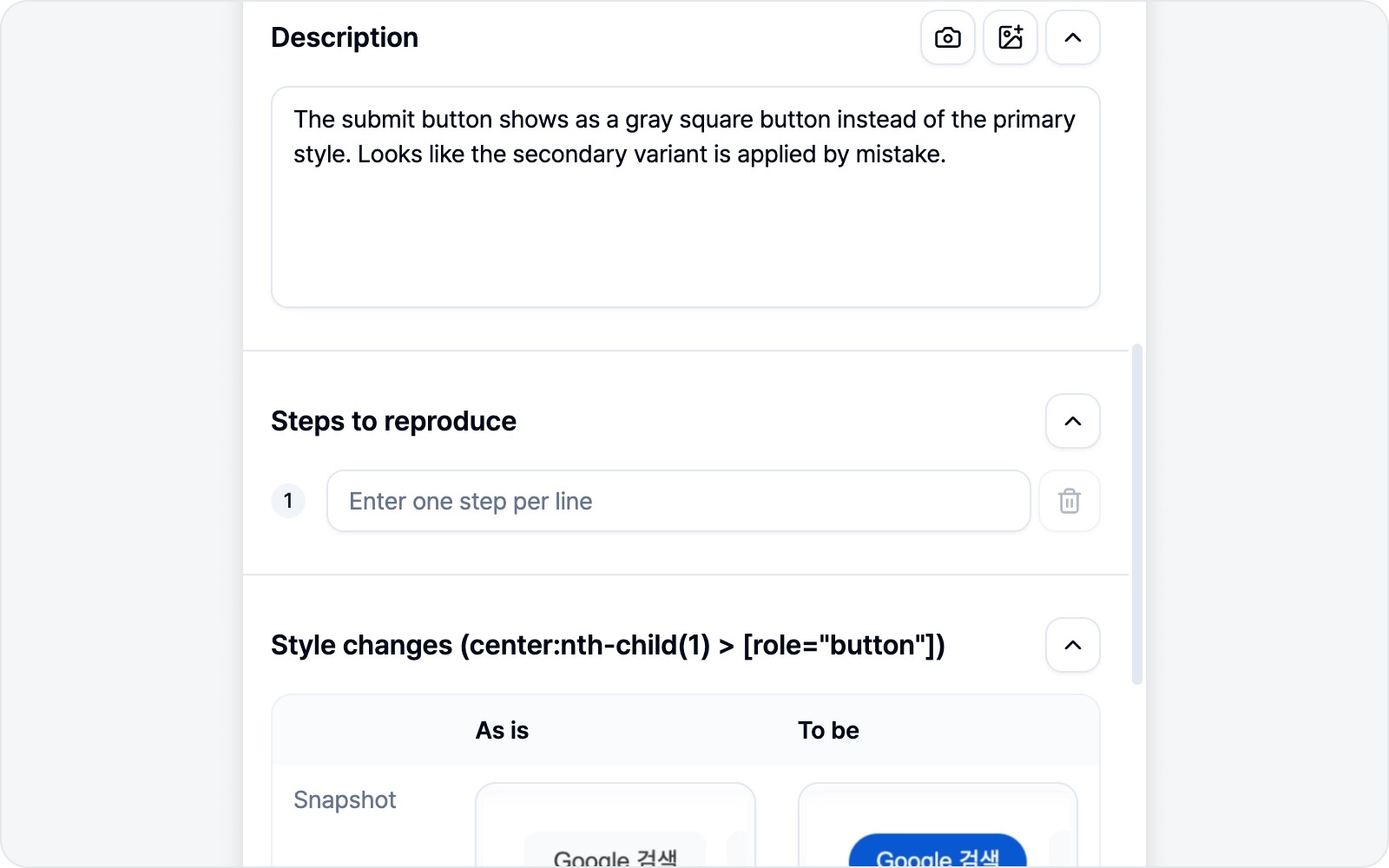 Writing the body
Sections appear per your body composition — Description, Steps to reproduce, Expected result, Notes (only the ones you've turned on). Steps to reproduce is an ordered list. Fill them in by hand, or let AI Draft below do it in one shot.
✨ AI Draft
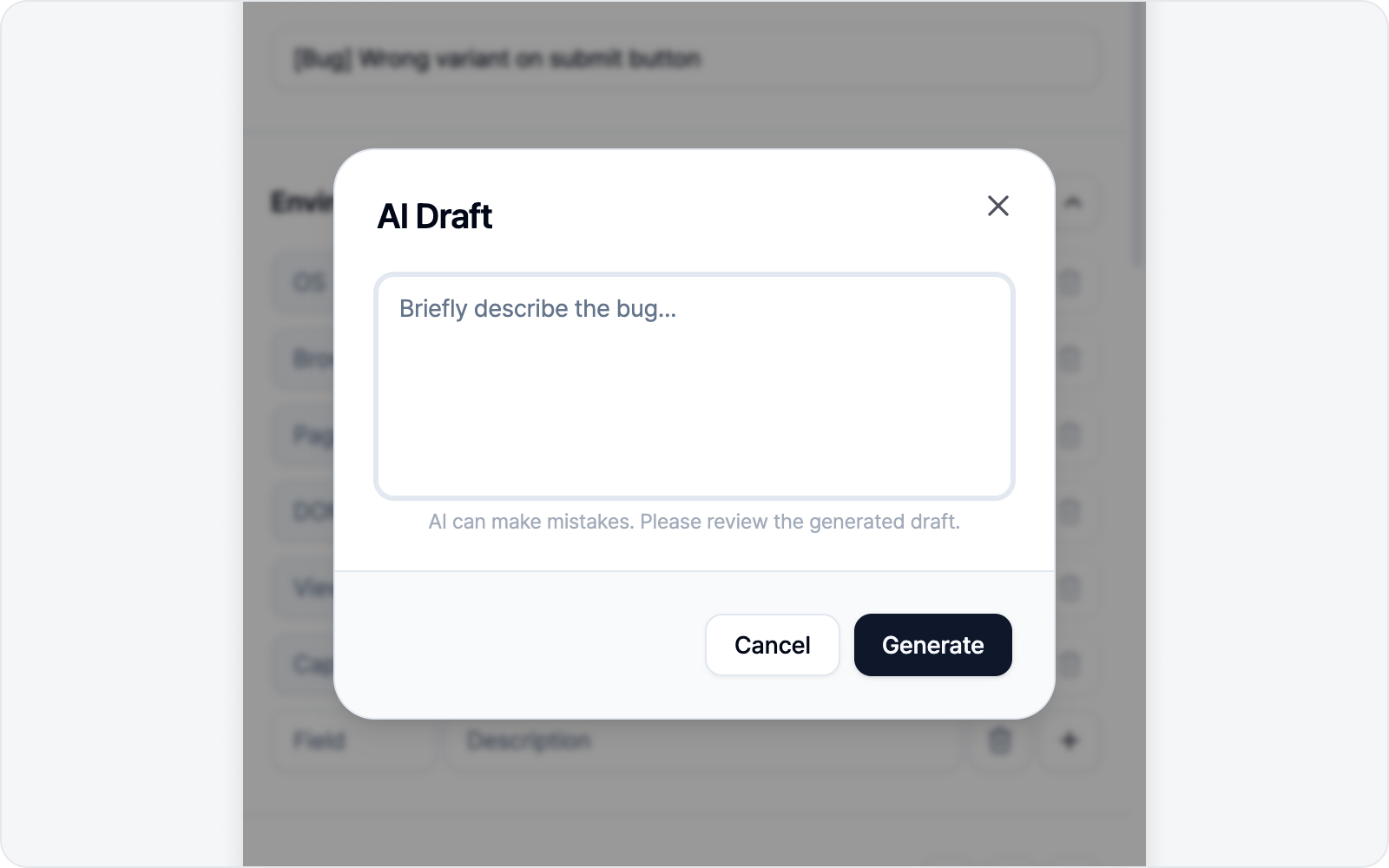 AI Draft banner and input box
If filling in each line by hand feels tedious, this is where AI earns its keep. With an AI connected, a purple "Let AI write your draft" banner shows up right below the body sections.
Click AI Draft on the right and a small input box opens. Jot down the bug in a line or two (in element mode you can even leave it blank) and AI fills in both the title and the body sections at once. Only the sections you've turned on get filled, and your title prefix stays put. If you've already jotted down a title or body, AI takes that in as context too — and any images you placed in the body stay put, with only the text refreshed.
In element mode, AI grounds the draft in your before/after style changes (and the captured before/after images), so which property should change to what lands in the draft naturally.
AI slips up now and then, so give the generated draft a quick look. The banner only shows when an AI is connected — see AI LLM Connection for how.
5. Log attachments
Element mode attaches no logs. For bugs that need logs, reach for Screenshot or Recording mode.
6. Preview
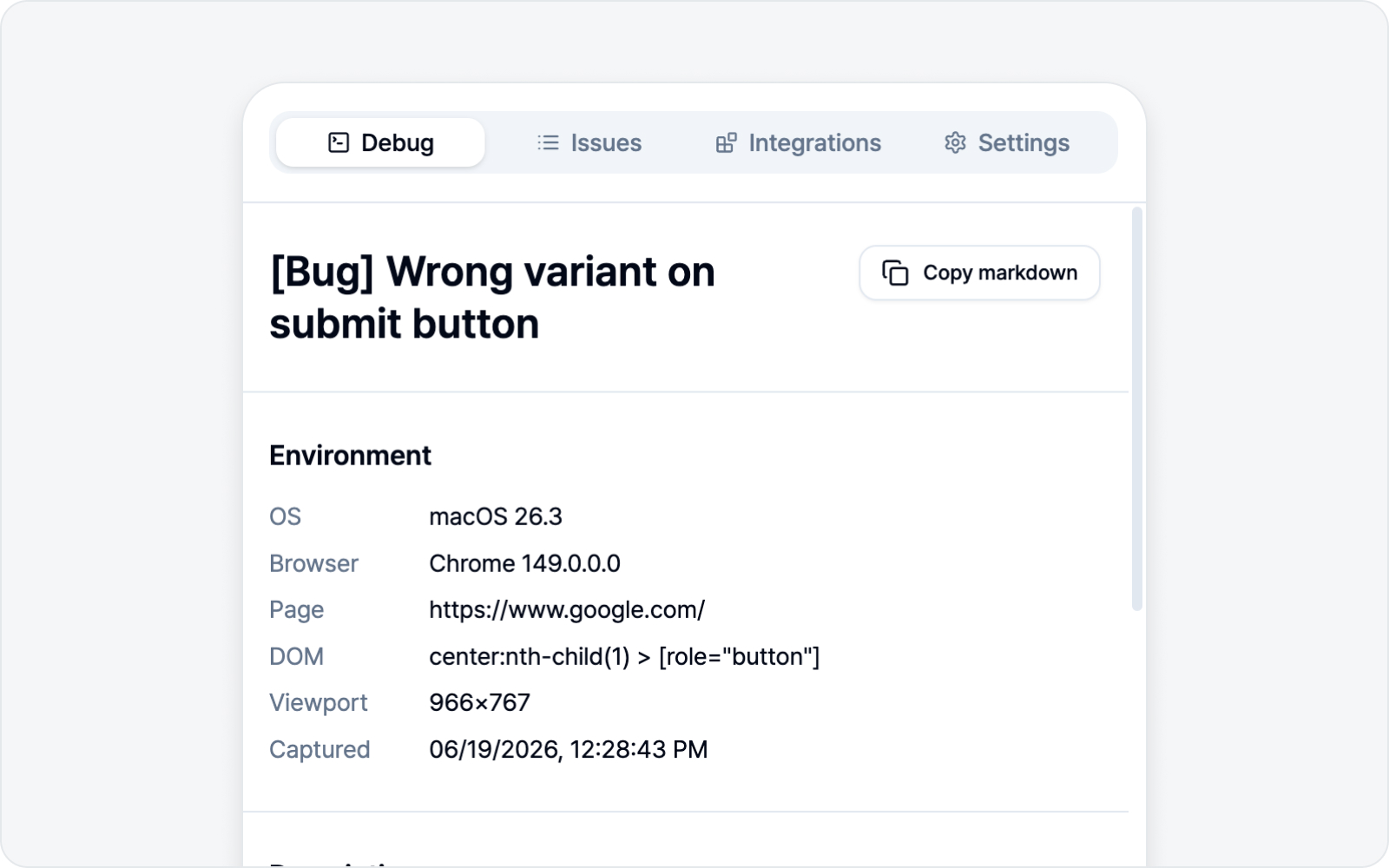 Issue preview
Give the body a look in the preview before submitting. Copy puts it on your clipboard as Markdown, ready to paste into another doc or a chat.
Copies leave out images and log files. An image on the clipboard makes editors like Notion and Jira refuse the paste outright — you'd lose the whole write-up — so we keep the text and leave a short note where each image was. Submit the issue and your images and logs are attached as usual.
7. Submit
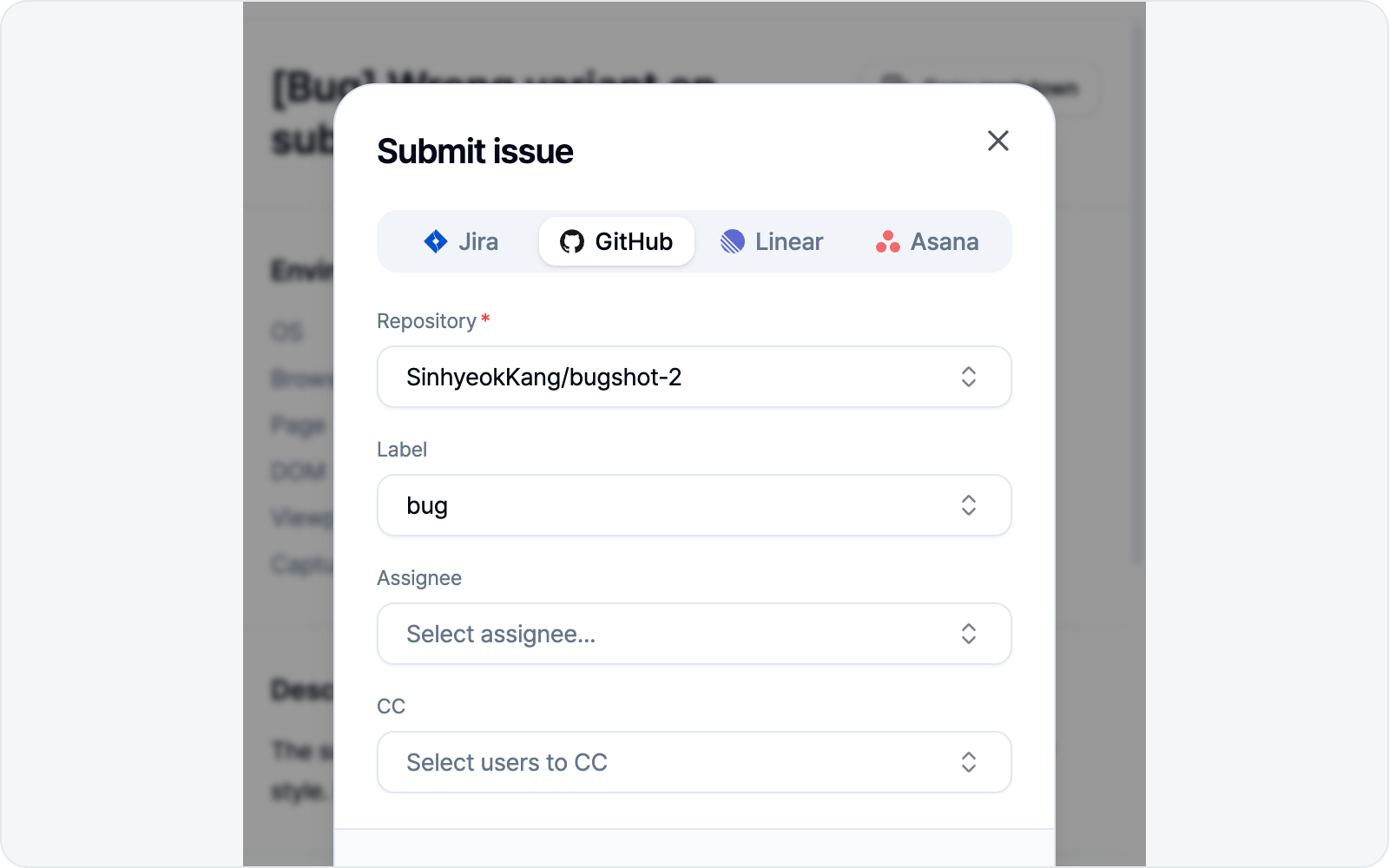 Issue submitted
Fill in the connected platform's fields (project, assignee, labels, etc.) and hit Submit issue. A link to the created issue appears when it's done.
If an attachment needs attention, check its status and Download the saved file from the completion screen. You can reopen the details later from Issues. If registration could not be confirmed, check the destination before trying to submit again.
At the bottom of the fields sits a CC field. Pick the folks who should be in the loop on this bug (reviewers, designers, PMs) and they land as a cc @name mention at the bottom of the created issue, each getting a notification on the platform. Select several at once and search by name to find them fast. Whoever you pick is pre-filled on your next issue too, so you don't have to reselect every time.
CC unlocks once you've picked the parent item first — repo, team, project, or workspace. Notion is the one exception: its connected integration needs the "read user information" permission to load the member list, so if it comes up empty, reconnect Notion in Settings.