
Issue Settings
Set up the parts that repeat on every issue here, and each one gets a little lighter on your hands.
Common
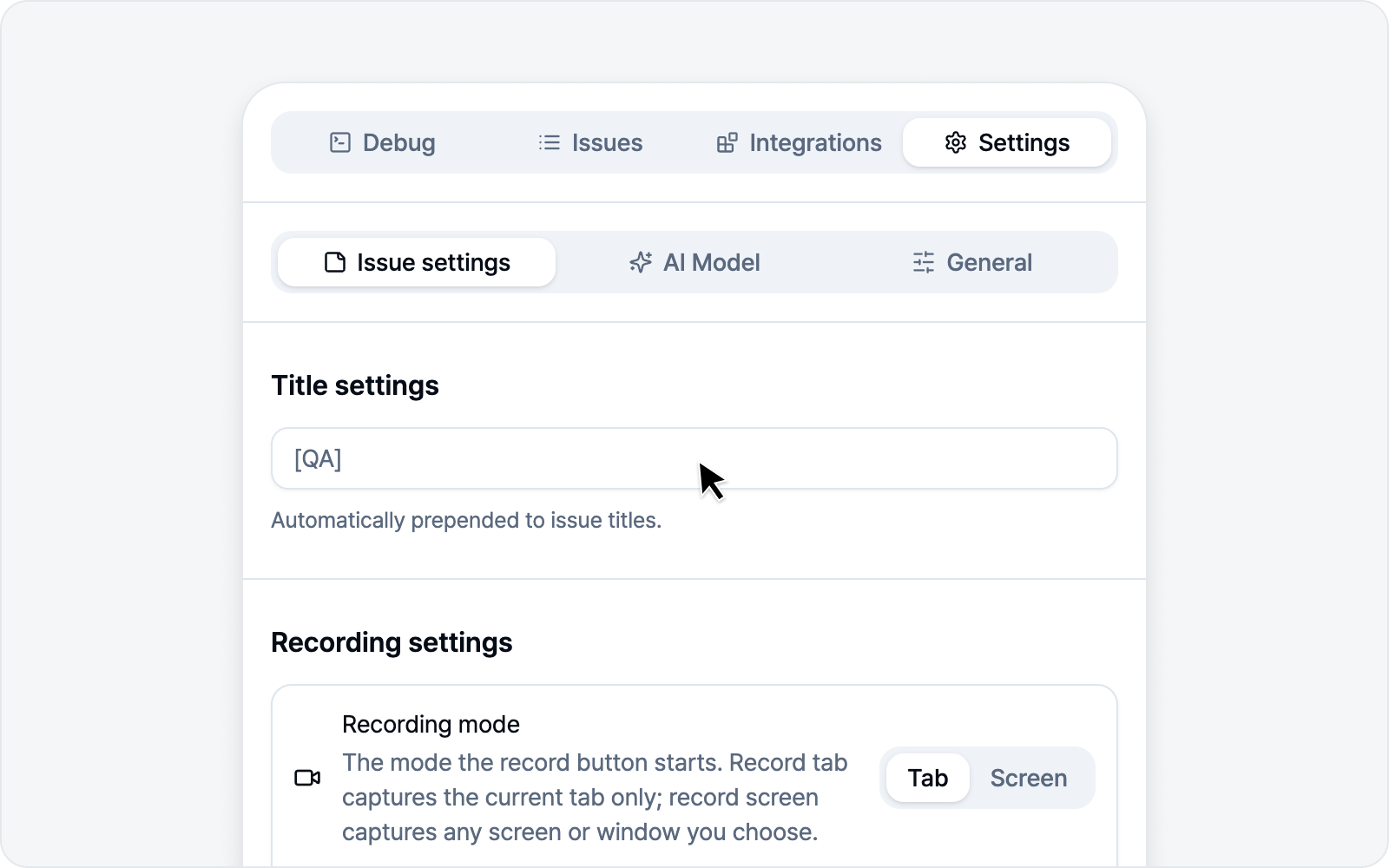 Common section — title prefix and issue body language
Two things that apply to every issue, no matter how you captured it.
Title prefix
A string automatically prepended to issue titles. Set it to [QA] , for example, and every title starts with [QA] . Pretty handy if your team uses label conventions.
Issue body language
This sets the language of section headings and table headers in the body you submit or copy. Great for teams who work in one language but file issues in another.
The default is Auto, with the language it currently resolves to shown in parentheses (e.g. Auto (English)). Leave it on Auto and it follows your display language, so switching the interface later won't leave your issue bodies stuck on the old one.
Only the scaffolding BugShot generates changes.
- Changes — section headings like
DescriptionandSteps to reproduce, the headers on the environment and style-change tables, and the log summary lines. - Doesn't change — anything you wrote yourself, and anything the AI wrote. It ships exactly as you left it, never translated.
- Your screen stays put — the side panel's tabs, buttons, and preview keep using your display language. Only the body you copy or submit changes.
Renamed a section label yourself (under Body composition below)? That name wins. Switching the body language leaves your own labels alone.
The language the AI writes in is a separate setting. To get the whole issue in one language, set both this and AI writing language.
Recording mode
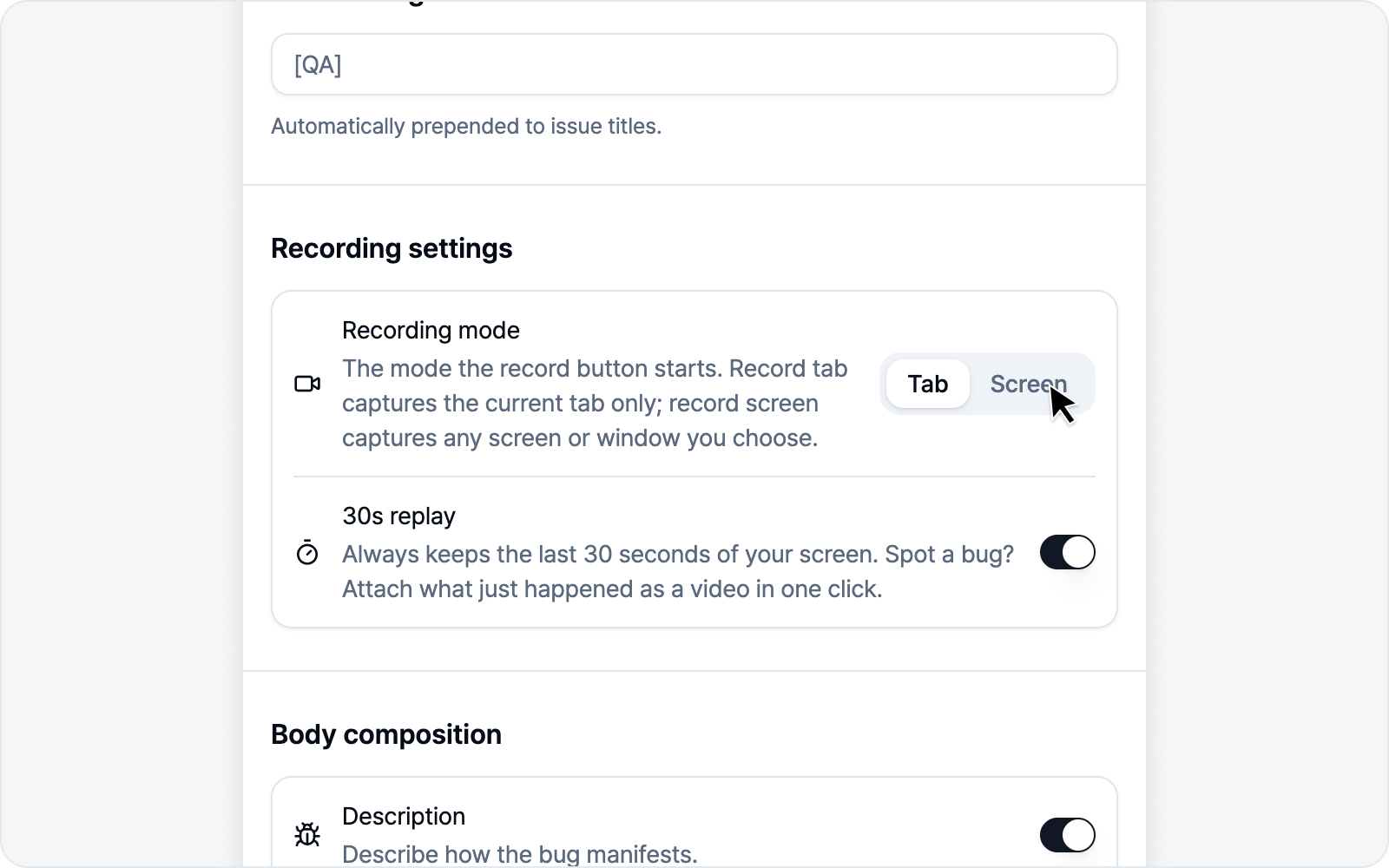 Recording mode setting
In the Recording settings section, pick ahead of time whether the record button captures just the tab, or the full screen and other windows too. The record button on the capture screen follows the mode you choose here.
- Tab — Records only the tab you're looking at. Fast, with no share picker.
- Screen — Pick the full screen or a specific window to record. Use it when you need to capture beyond the tab (another app window, a payment or login window that pops up on its own).
Once you pick a mode, it stays put until you change it. Your choice shows up right away in the record button's icon and label on the capture screen.
30s replay
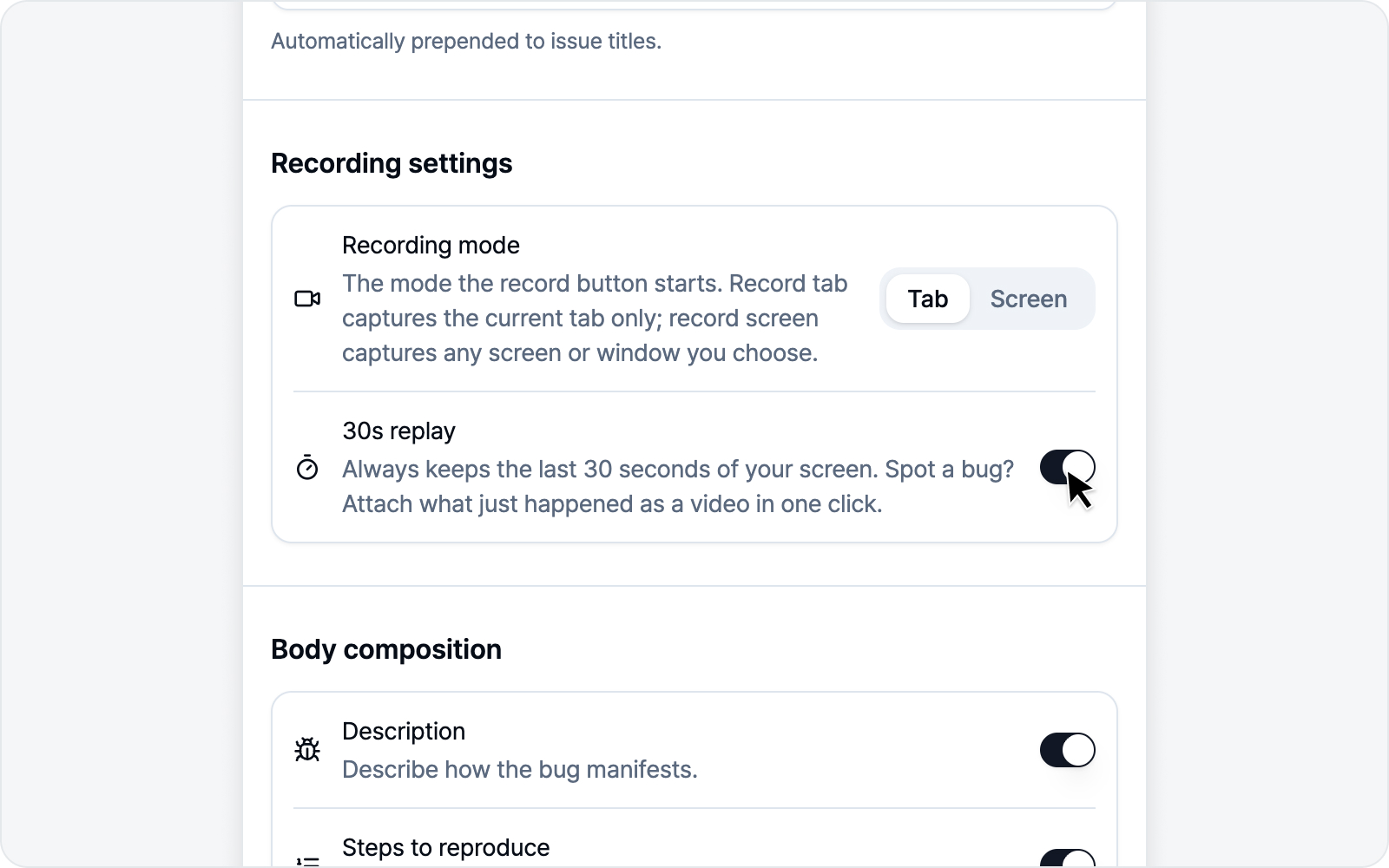 30s replay toggle
Always keeps the last 30 seconds of your screen. Spot a bug? Attach what just happened as a video in one click.
Turning this toggle on starts keeping the last 30 seconds of your screen. There's no separate permission prompt — just flip the switch and it's on. Since it keeps capturing your screen in the background, feel free to turn it off when you don't need it.
Curious how to use 30s replay? See 30s Replay.
Body composition
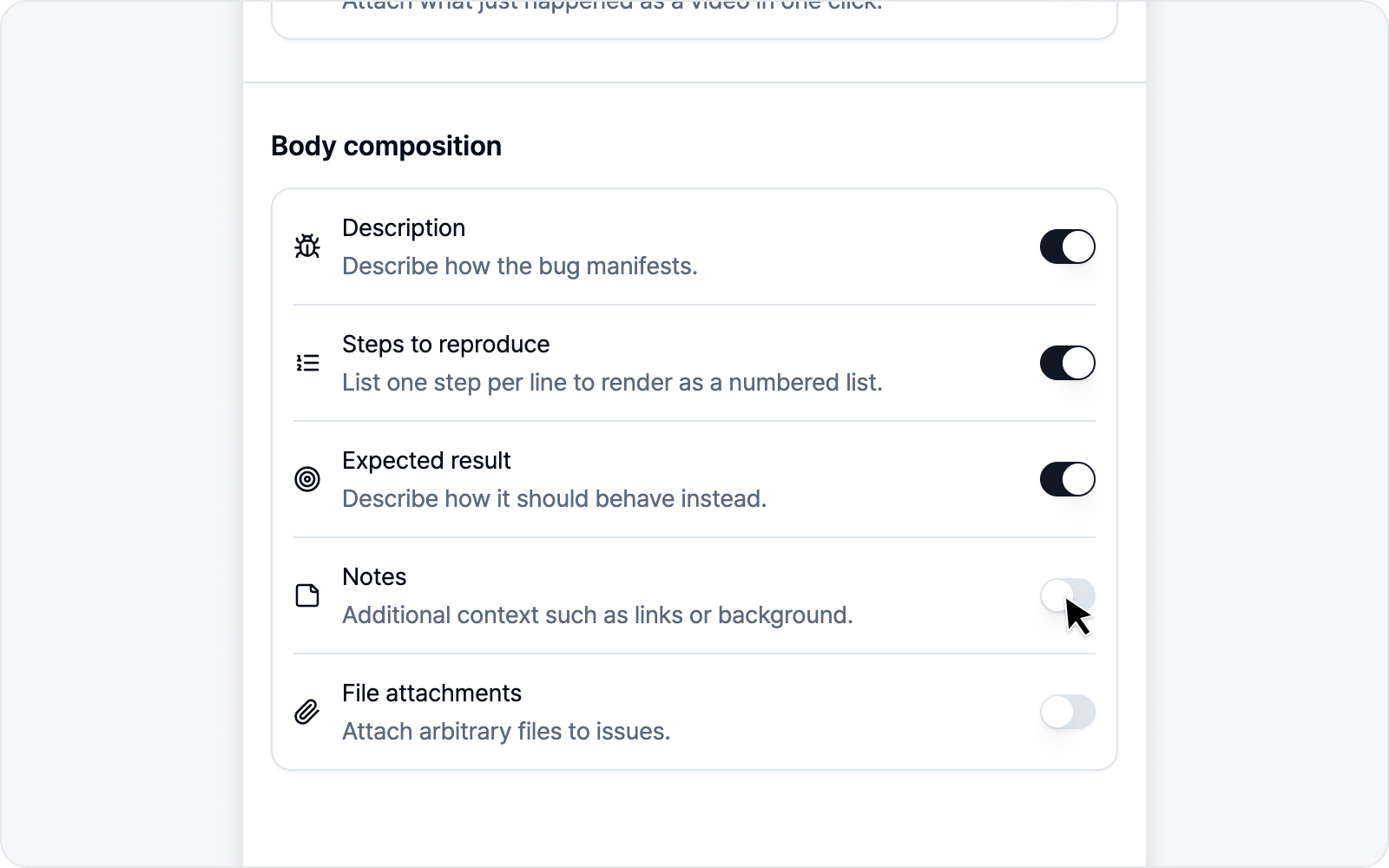 Body composition setting
Choose which sections go into the issue body — and what order they go in. These come ready out of the box.
| Item | Default | Input format |
|---|---|---|
| Description | On | Paragraph |
| Steps to reproduce | On | Ordered list |
| Media & Logs | Always | — |
| Expected result | On | Paragraph |
| Notes | Off | Paragraph |
- Steps to reproduce is an ordered list — enter one step per line and it numbers them 1, 2, 3… for you.
- Notes is off by default, so flip it on only when you need it.
- You can override each section's label and placeholder text. Rename "Description" to match your team's wording, for instance.
Media & Logs
This is where element style changes, captured media, and collected logs land. Unlike the other items it has no on/off switch — you only set where it goes. Nothing is captured, nothing shows up in the body, so there's nothing to turn off. Whether logs ride along with an issue is decided on the issue screen itself, on the log card.
Reordering
Grab the handle on the left of any row and drag it up or down. The new order saves the moment you drop it, and every issue you write from then on follows it.
You can do the same from the keyboard.
- Press Tab until the handle has focus.
- Press Space to pick the item up.
- Use ↑ · ↓ to move it.
- Press Space again to drop it. (Esc cancels.)
Move Media & Logs to the top, for example, and your screenshots or video will come before the description. Handy for matching your team's issue template.
Shuffled things around and want the original layout back? Hit the restore button to the right of the Body composition heading. It stays inactive while you're on the default order and lights up once you change it. It restores the order only — whatever you turned on or off stays that way.
Other
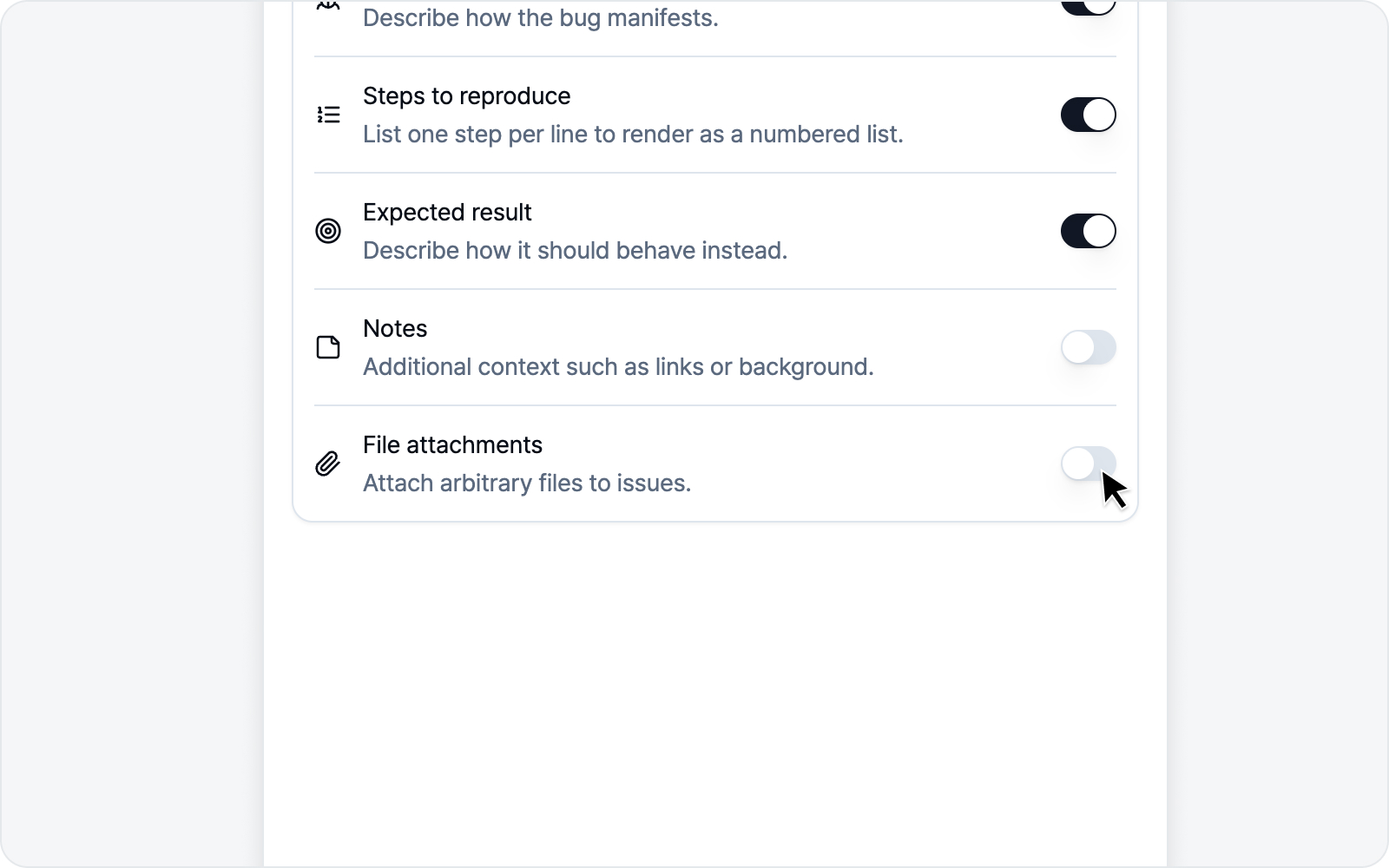 Other settings — Fill steps to reproduce, File attachments
Fill steps to reproduce
With Fill steps to reproduce on, the moment you land on the issue screen after recording, AI reads the action log it just captured and fills the Steps to reproduce section for you. It saves you from retyping each step by hand.
- It's on by default.
- It only kicks in when an AI model is connected — with no AI available, nothing gets auto-filled and Steps to reproduce stays empty. See AI LLM Integration to connect one.
- When it runs, the action log is sent to the connected AI. If you recorded a sensitive screen, feel free to turn it off.
- If you turn the Steps to reproduce section off under Body composition above, there's nothing left to fill, so this option goes inactive too. Your on/off choice is remembered and comes back when you re-enable the section.
Want to see how it fills things in? Check out Writing an Issue (Recording mode).
File attachments
Sometimes you need to drop a file straight onto an issue — something captures or logs can't quite hold. Flip this toggle on and an Attachments area appears on the issue screen, where you can pick files to send along.
- It's off by default.
- You can attach up to 10 files, 50MB total.
- Each platform has its own per-file size cap (Notion 5MB, GitLab 10MB, for example). Files over that show an "over limit" note and may be rejected by the platform on upload.
- Attached files upload together when you submit the issue.