
AI LLM Connection
In the AI Model sub-tab of Settings, connect the LLM you already use. BugShot runs no AI server of its own — it uses your own key (BYOK — Bring Your Own Key). So it's your key, your model, and you can use it with peace of mind.
No key? No problem. If Chrome's built-in AI is available in your browser, the basic AI features just work with it — no setup needed.
Connect
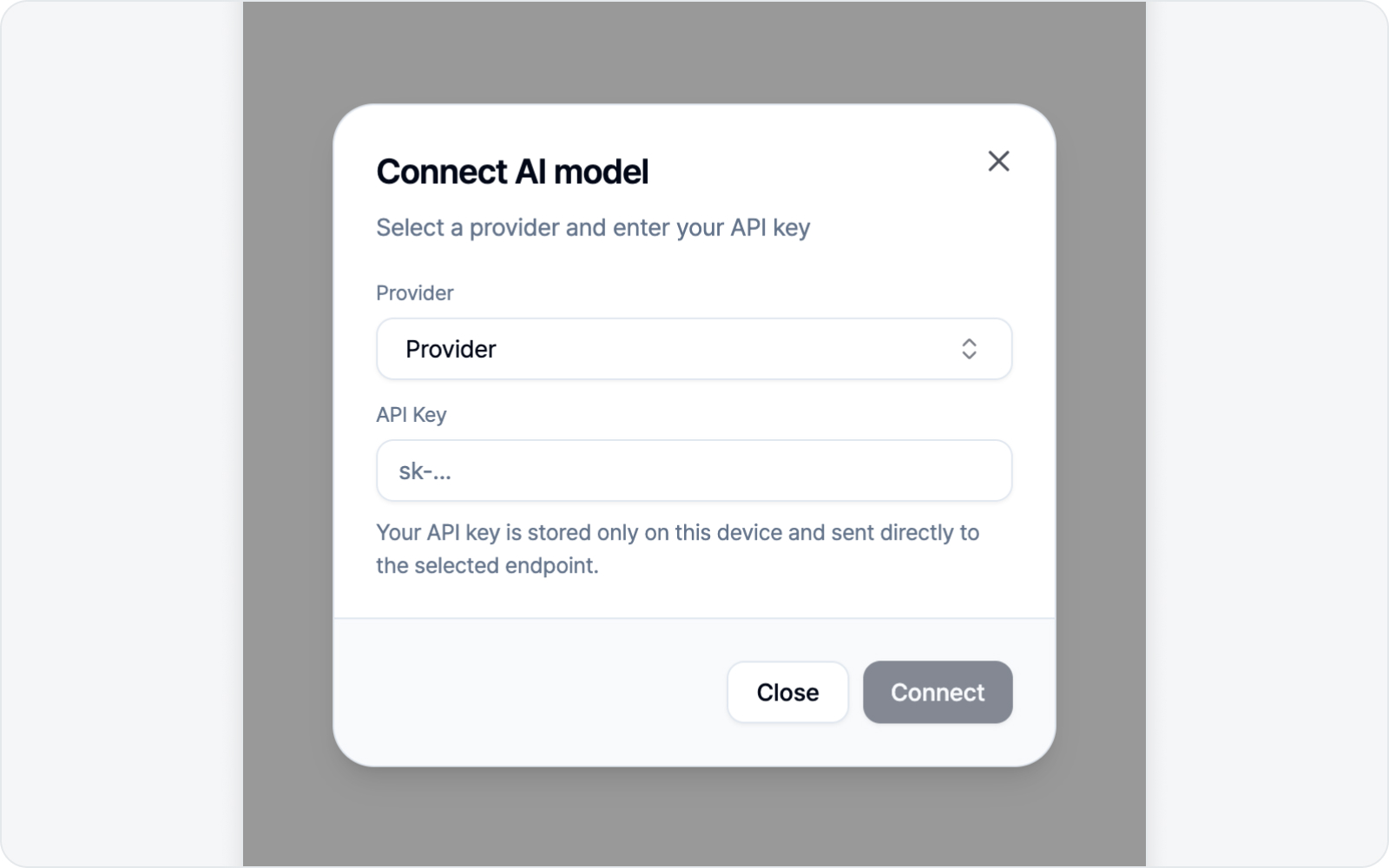 Connecting an AI model
Pick a provider and enter your key.
- Provider — Choose your LLM from the list. OpenAI, Anthropic, Gemini, Mistral, Groq, Together, OpenRouter, and Ollama are built in, so there's no endpoint URL to hunt down. Not on the list? Pick Custom and paste any OpenAI-compatible endpoint — locally hosted models like Ollama connect the same way.
- API Key — The key issued by that service.
Once you connect, a screen follows for picking the model — choose the one you want under Select model. Most providers with an OpenAI-compatible endpoint connect without a hitch. There's no separate permission prompt — once you've filled in the details, it connects right away.
Which AI runs
BugShot picks the AI for you, in this order — you rarely have to think about it.
- If you've connected an LLM, it runs on that model. The AI banner shows the provider name (e.g. OpenAI) as a badge.
- If you haven't, it falls back to Chrome's built-in AI automatically. The badge then reads Chrome AI, and no key or setup is needed.
- If Chrome's built-in AI isn't available either, the AI features simply don't appear. In that case, just connect an LLM above.
Chrome's built-in AI may not be offered depending on your browser version and device. For something more reliable, connecting your own LLM is the safer bet.
Two features it turns on
Once AI is ready, two features become available.
AI Styling
While inspecting an element, change styles with plain language like "make the button rounder" or "add more spacing." See Styling for the full walkthrough.
AI Draft
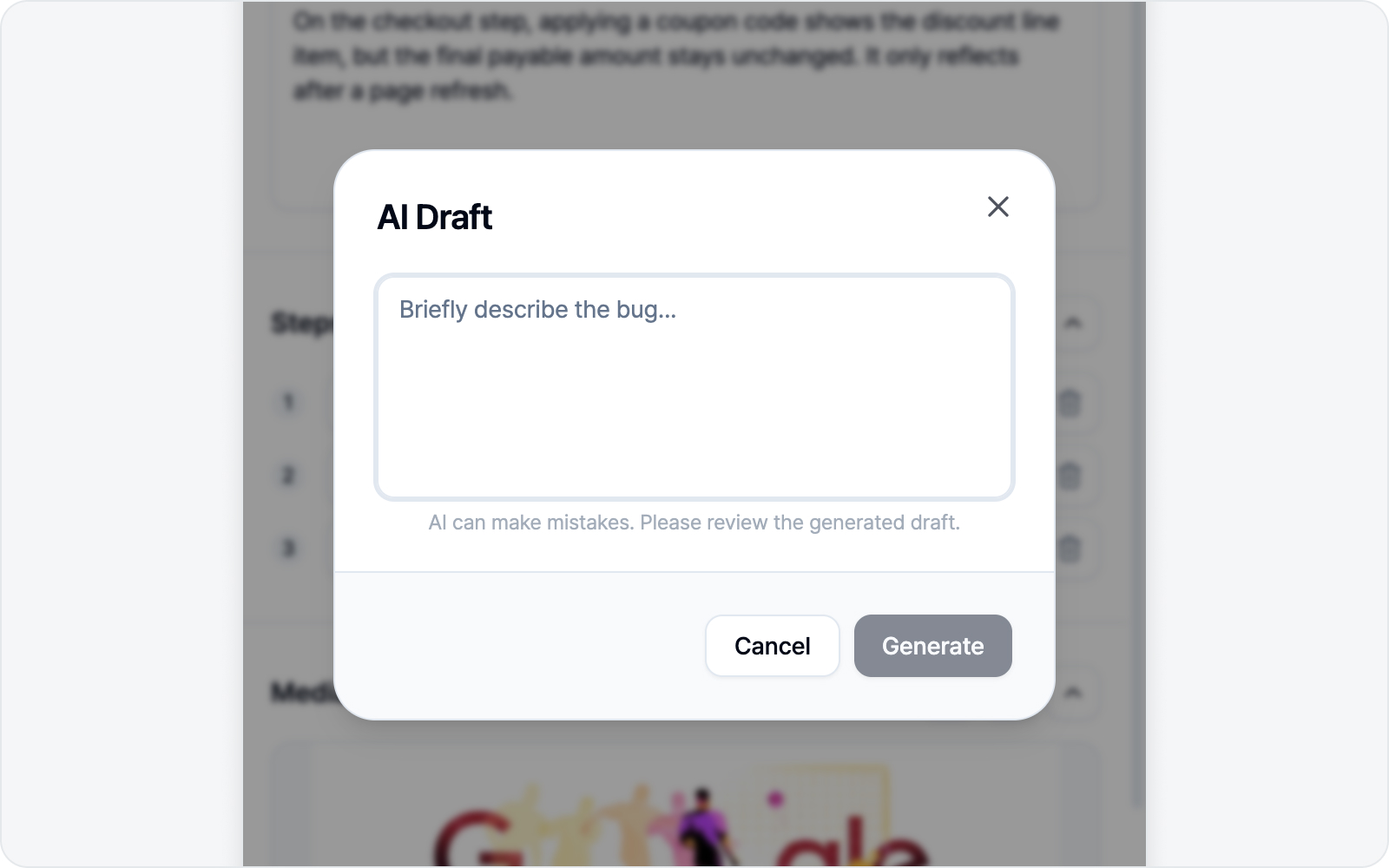 AI Draft dialog
Auto-fill the issue body from your capture and logs. On the issue screen, a purple "Let AI write your draft" banner shows up below the body sections — click AI Draft on the right to open the input.
Jot the bug down in a line or two (you can leave it blank in element mode) and hit Generate. AI fills in the title and every enabled body section in one shot. It draws not just on your capture and logs but on anything you've already typed, so feel free to run it again to polish. When a log is directly tied to the bug — not just errors, but even a normal-looking 200 response that fits what went wrong — AI also drops the actual log into the description as a code block — the log text is the captured original, never something the AI wrote. The evidence differs a bit per mode — see Write an Issue (element) for the detailed flow.
AI slips up now and then, so give the generated result a quick look before submitting.
AI writing language
AI writing language sets the language the AI writes in, separately from your display language — keep the interface in English and get the AI draft in French, if that's what your team reads. Handy when you file into a tracker your teammates read in another language.
What you set here is the language of the prose AI writes. The scaffolding around it — section headings like Description, table headers — is handled separately by Issue body language. Here's the split.
| Setting | What it controls |
|---|---|
| AI writing language | The content AI fills into the title and body |
| Issue body language | The scaffolding BugShot generates — section headings, table headers |
Want the whole issue in one language? Set both. Change only one and you'll end up with English headings around French prose, or the other way round.
The default is Auto, with the language it currently resolves to shown in parentheses (e.g. Auto (English)). Leave it on Auto and it follows your display language, so switching the interface later won't leave the AI stuck on the old one.
You can pick from English, 한국어, 日本語, 中文(简体), Español, Français, Deutsch, Português (Brasil), and Русский.
This applies to AI Draft and to Fill steps to reproduce. AI Styling isn't affected — it changes style values, not prose.
This option only shows up when you're running on an LLM you connected above. On Chrome's built-in AI, or a model running on your own machine (connected over a localhost address), it stays hidden and the AI follows your display language instead. If you don't see it, check which AI is running first.