
Annotation
Draw on the captured image to mark where the bug is and what it is. Point with an arrow, box it off, jot a note — and the reader gets it at a glance. It's simpler than it sounds, so don't sweat it.
Add, edit, remove
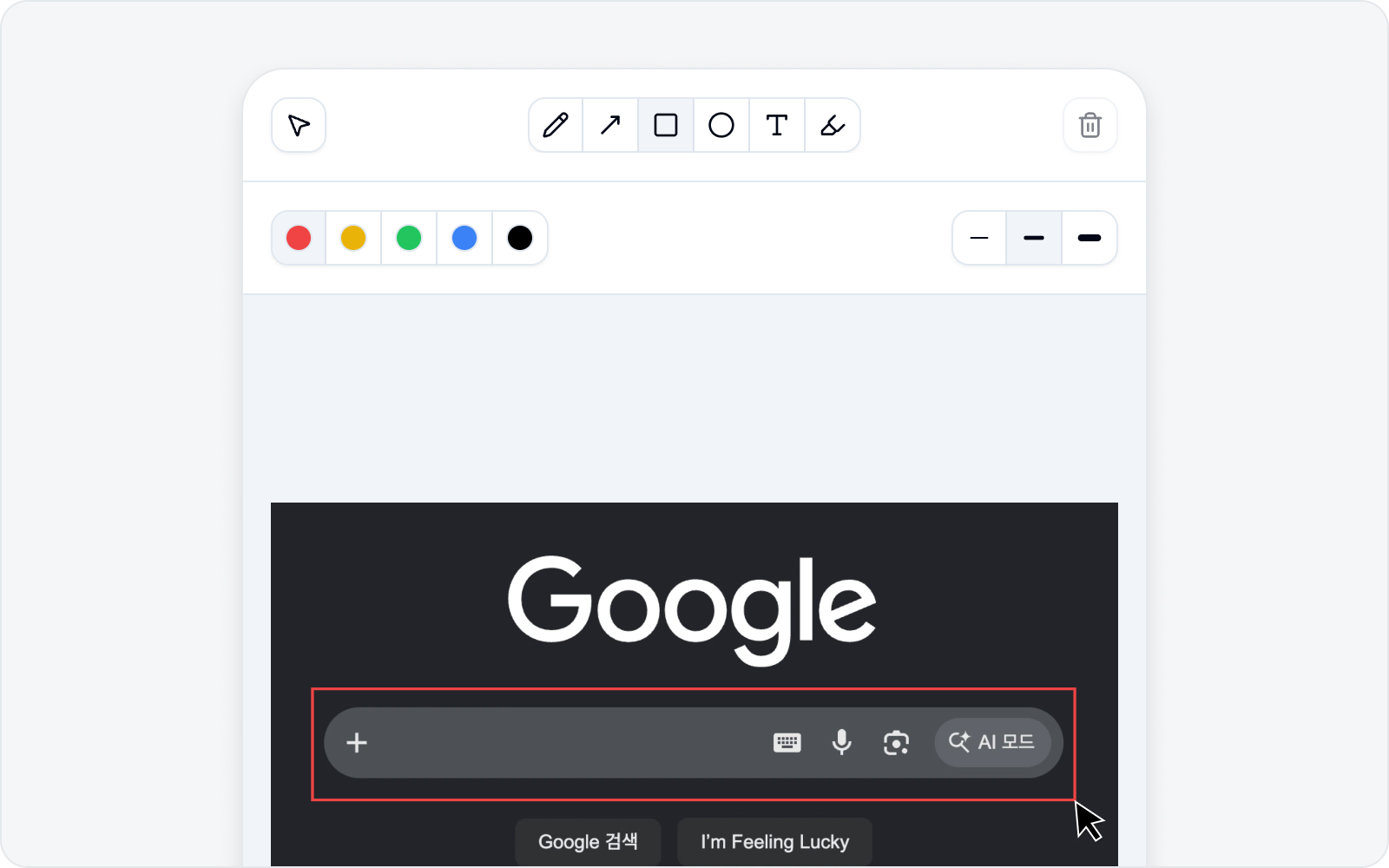 Annotating
- Add annotation — Start annotating on top of the captured image.
- Edit annotation — Reopen what you've drawn and adjust it.
- Remove annotation — Clear what you've drawn.
Tools
The annotation editor keeps every tool you need right in the toolbar. It's BugShot's own toolbar, so the labels are fully localized — just pick a tool and draw on the image.
- Select — Grab something you've already drawn to move, resize, or delete it. It isn't a drawing tool, so the color and thickness row below stays locked while Select is active.
- Pen · Arrow · Rectangle · Ellipse — Draw freehand, point, box things off, or circle them. These tools let you set the line thickness to Thin · Medium · Thick.
- Text — Drag a box where you want it, then type your note inside. Pick the font size from Small · Medium · Large.
- Highlight — Sweep a highlighter color over an area to emphasize it. Highlight thickness is adjustable too — Thin · Medium · Thick.
Set the color and thickness after you pick a drawing tool — the row is locked while the Select tool is active. Pick a color from Red · Yellow · Green · Blue · Black. Made a mistake? Just hit Undo · Redo, and you can always Delete an annotation you no longer want — so draw freely.
Zooming and moving around
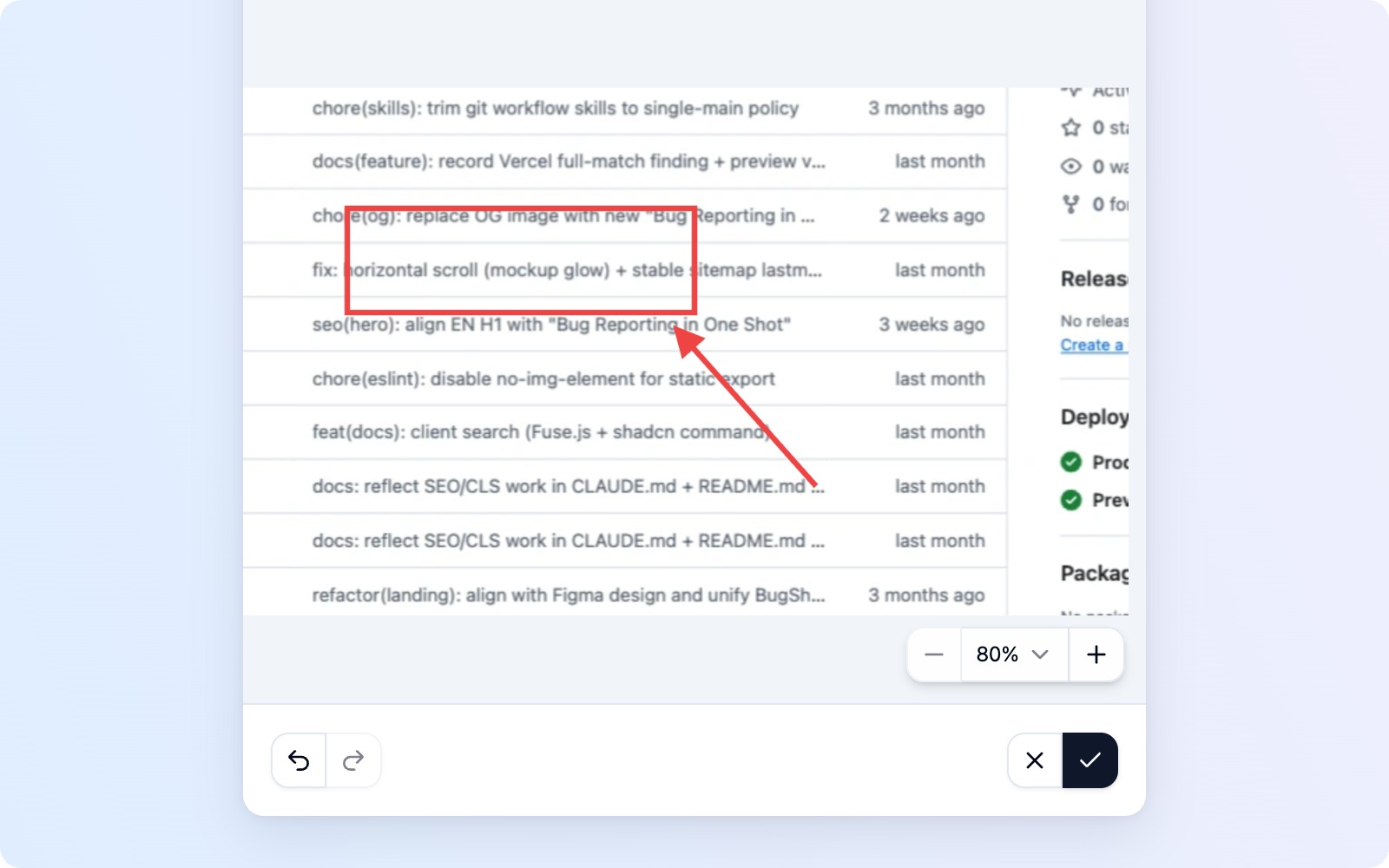 Zoom controls
A tall image — a full-page capture, say — is unreadable when it's squeezed into one screen. Use the Zoom level controls at the bottom of the canvas to blow it up as much as you need and land your annotations exactly where they belong.
- Zoom in · Zoom out — The
+and−buttons step through the zoom levels. Zooming keeps whatever is in the middle of your view centered, so put the spot you care about in the middle first, then zoom. - Zoom level list — Click the number in the middle to open the list: Fit width (the default, sized to the canvas width), Whole image (see it end to end), and 50% through 400%.
- Fit width button — It appears at the bottom-left of the canvas once you change the zoom. One click takes you back to where you started.
The editor opens with the Select tool active. When the image spills past the view, drag an empty spot to move the canvas — the cursor turns into a hand. Drag an annotation you've drawn and it moves instead, so the two never get confused. No mouse? Focus the canvas and use the arrow keys.
You can change the zoom at any time, even mid-drawing. Doing so drops the drawing tool and switches back to Select — adjust your view, then pick the tool again.
Zooming only changes how you view the image. The finished screenshot is always attached at its original resolution, so zoom in as much as you like.
Done
When you're finished, click Done to finalize the image. The annotated screenshot is attached to the issue. Not happy with it? Cancel backs you out, no harm done.
Continue with Write an Issue.