
Quick Start
New here? No worries — going from install to your first submitted issue takes about five minutes. Walk through this flow once and the rest comes naturally.
1. Install
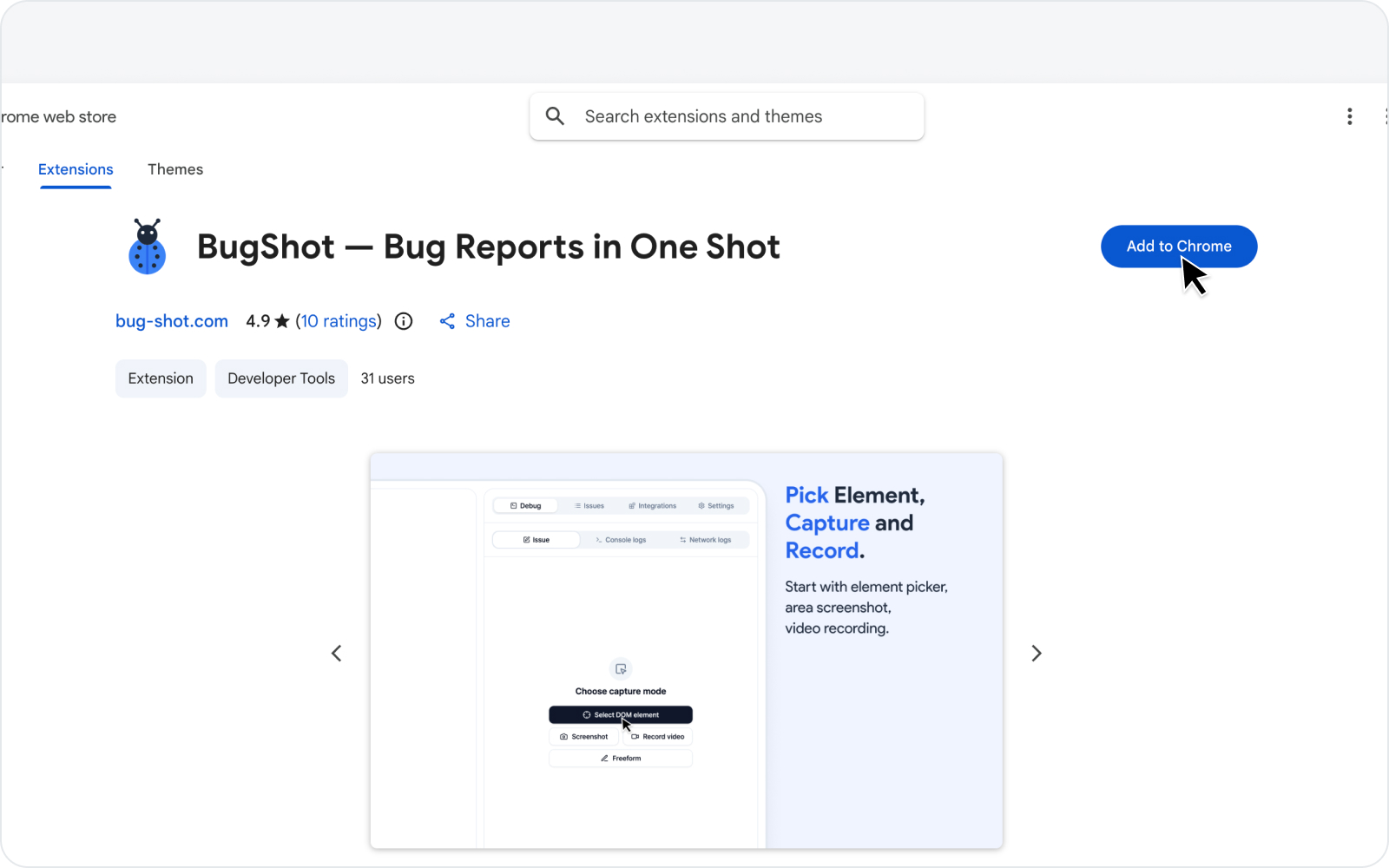 Chrome Web Store install page
Install BugShot from the Chrome Web Store. A BugShot icon shows up in your toolbar.
2. Open the side panel
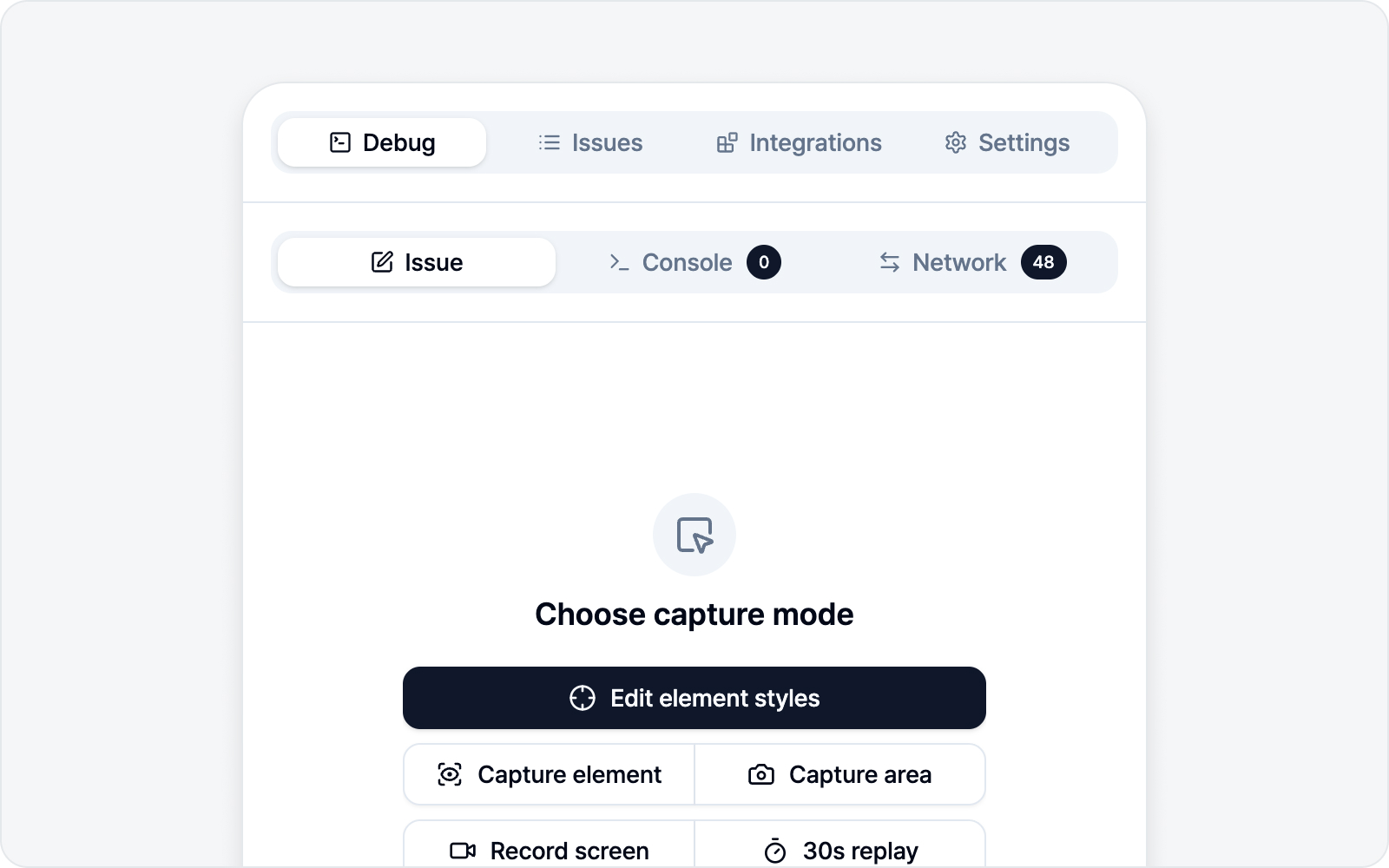 The side panel opened
Click the BugShot icon in the toolbar, or press Cmd/Ctrl+Shift+E to open the side panel.
If the shortcut doesn't respond, it may be clashing with your OS or another extension — just open it from the toolbar icon instead.
Right after installing you're probably still on the Chrome Web Store, where capture isn't available — the panel will say "Can't capture on this page". That's expected: step 3 below (connecting a platform) works fine from here, and the panel switches over on its own once you navigate to the page you want to capture.
3. Connect a platform
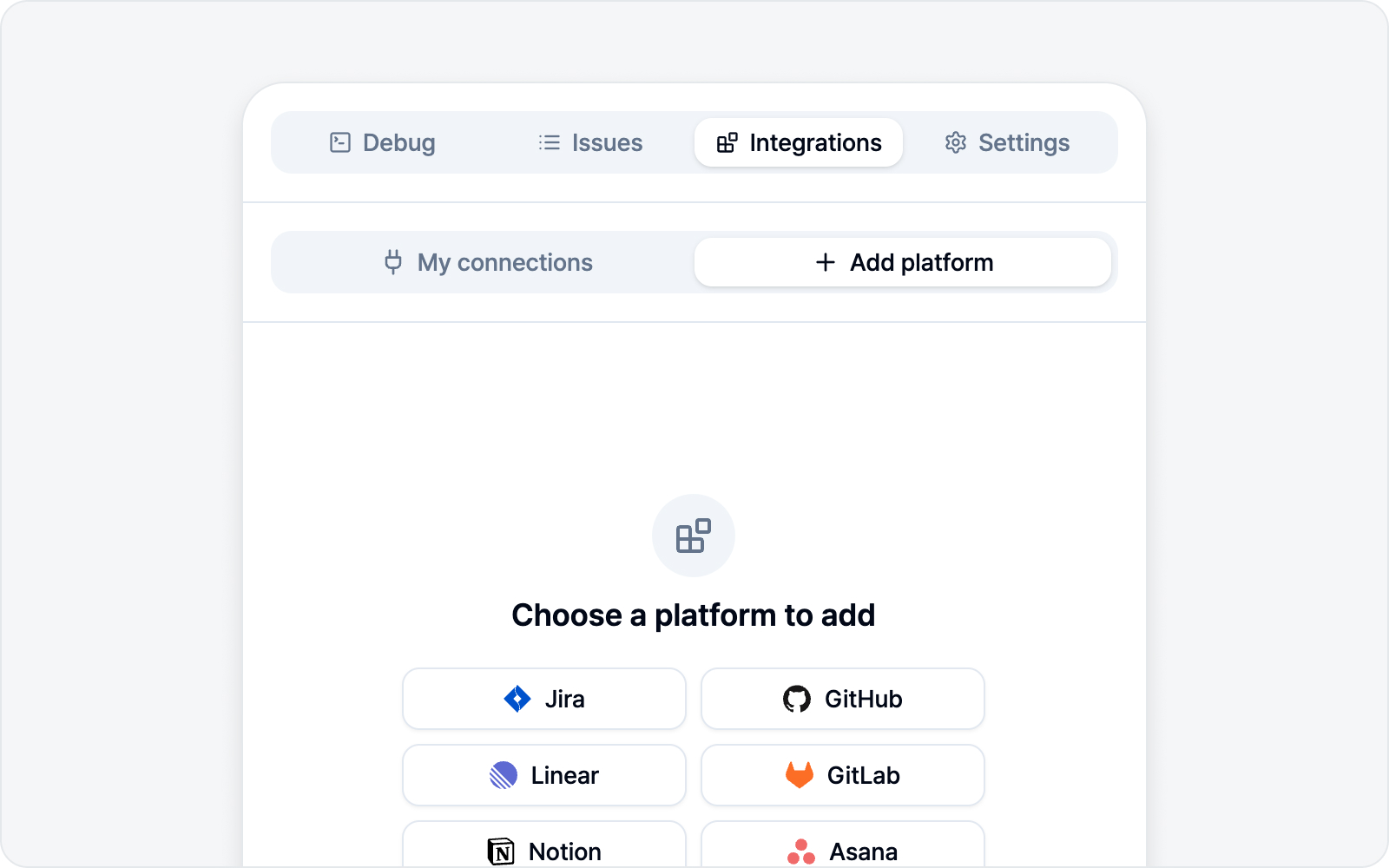 Connecting a platform in the Integrations tab
To file an issue you need at least one platform connected. In the Integrations tab, just connect one of Jira, GitHub, Linear, Notion, GitLab, Asana, or ClickUp (Slack works too, as does a Custom Webhook pointed at your own server). Connecting Platforms walks you through it step by step.
Don't feel like setting this up right now? Skip it. Capturing and drafting work either way, and when it's time to submit, a banner at the bottom of the screen will bring you back here.
4. Capture
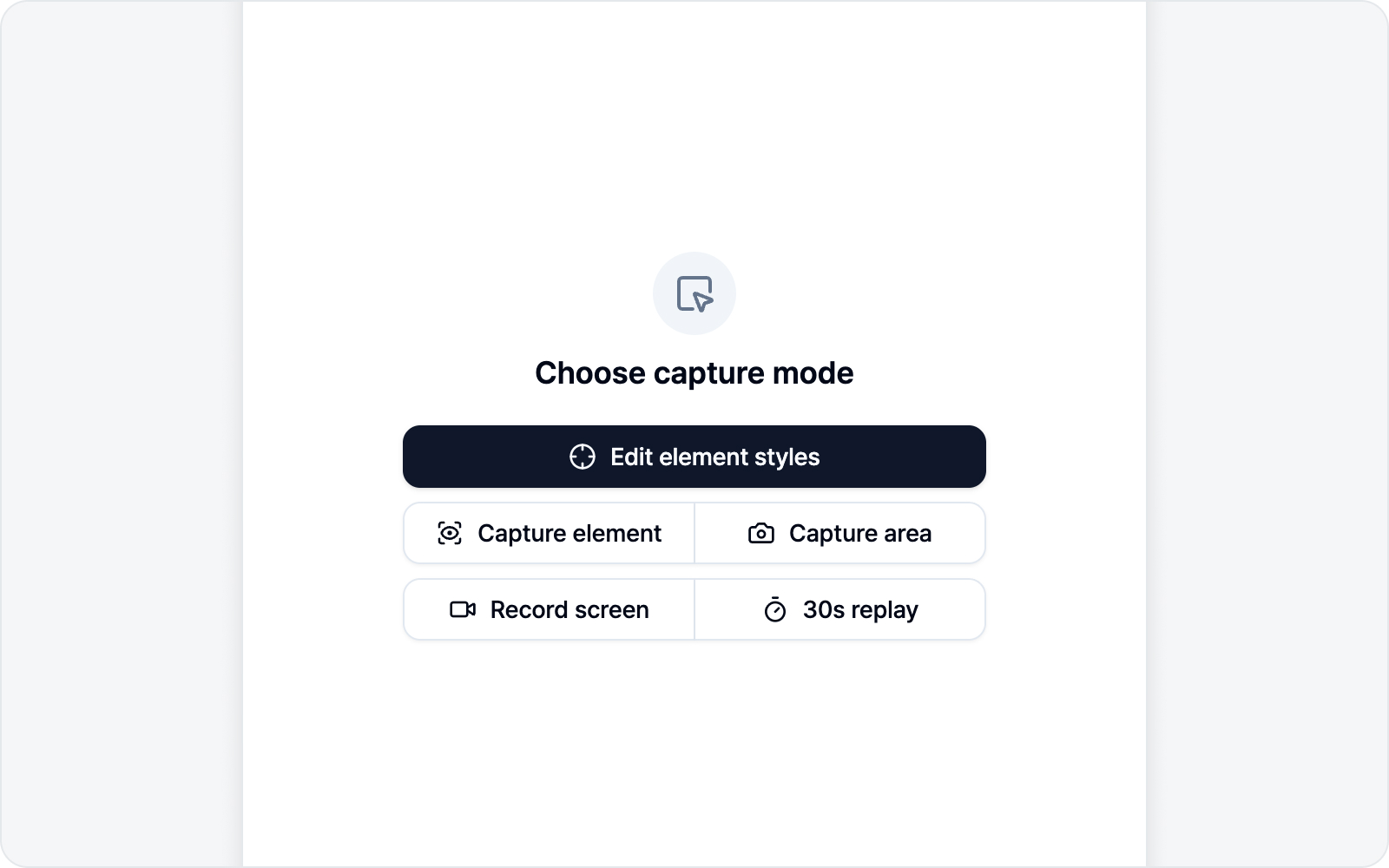 Choosing a capture mode
In the Debug tab, pick a capture mode.
- Edit element style — Pick an element, edit its styles, and report before/after.
- Capture element — Click an element to crop just that element as a screenshot.
- Screenshot — Drag a region, grab the whole visible screen, or capture the entire page including what's below the fold — then mark it up.
- Record screen — Record the behavior as a video.
If you're not sure which to pick, Screenshot is the simplest place to start.
5. Write the body
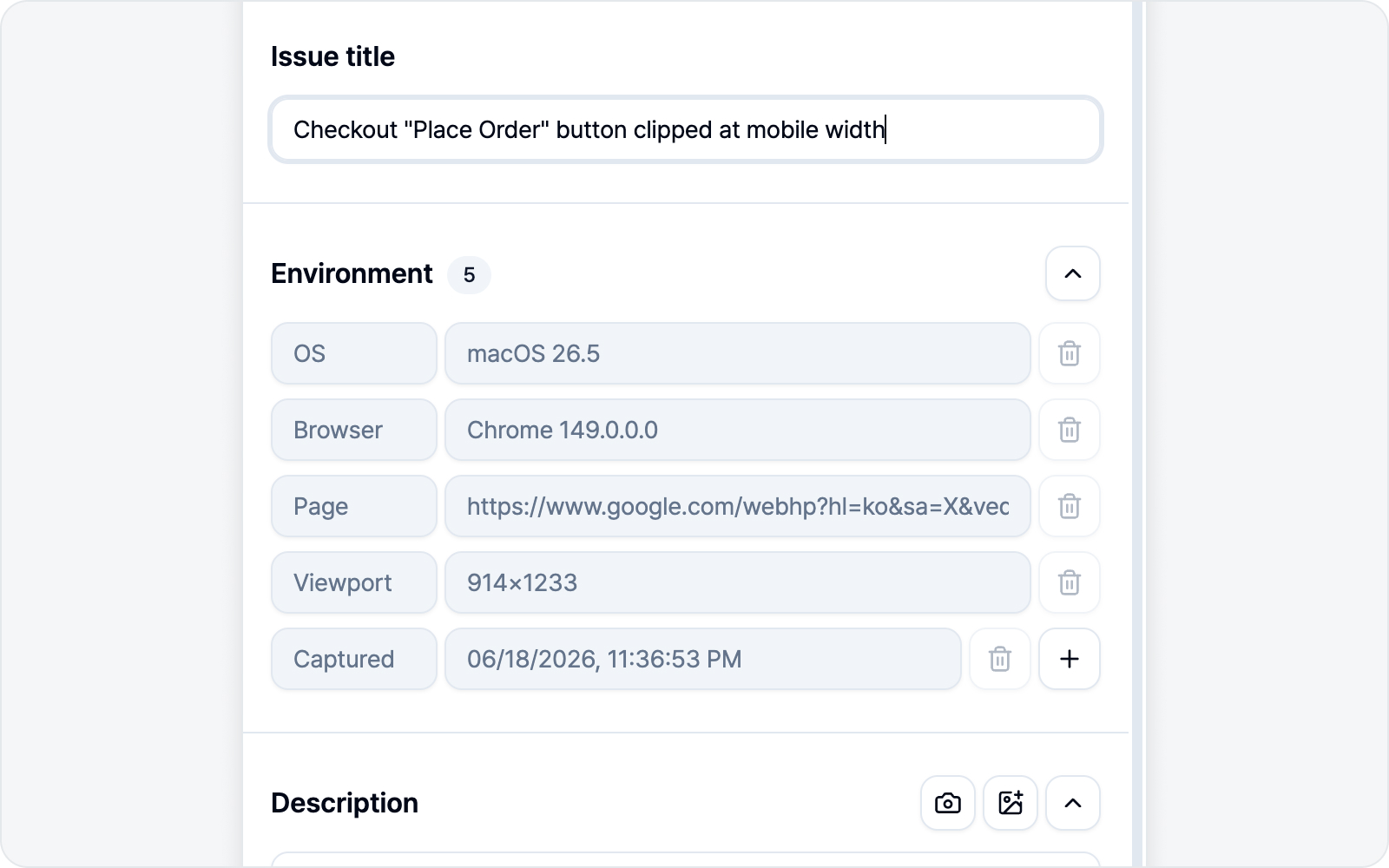 Writing the issue draft
After capturing, you land on the issue draft. Just fill in the title and the Description, Steps to reproduce, and Expected result — the environment (OS, browser, URL, etc.) fills itself in, so don't sweat it.
6. Submit
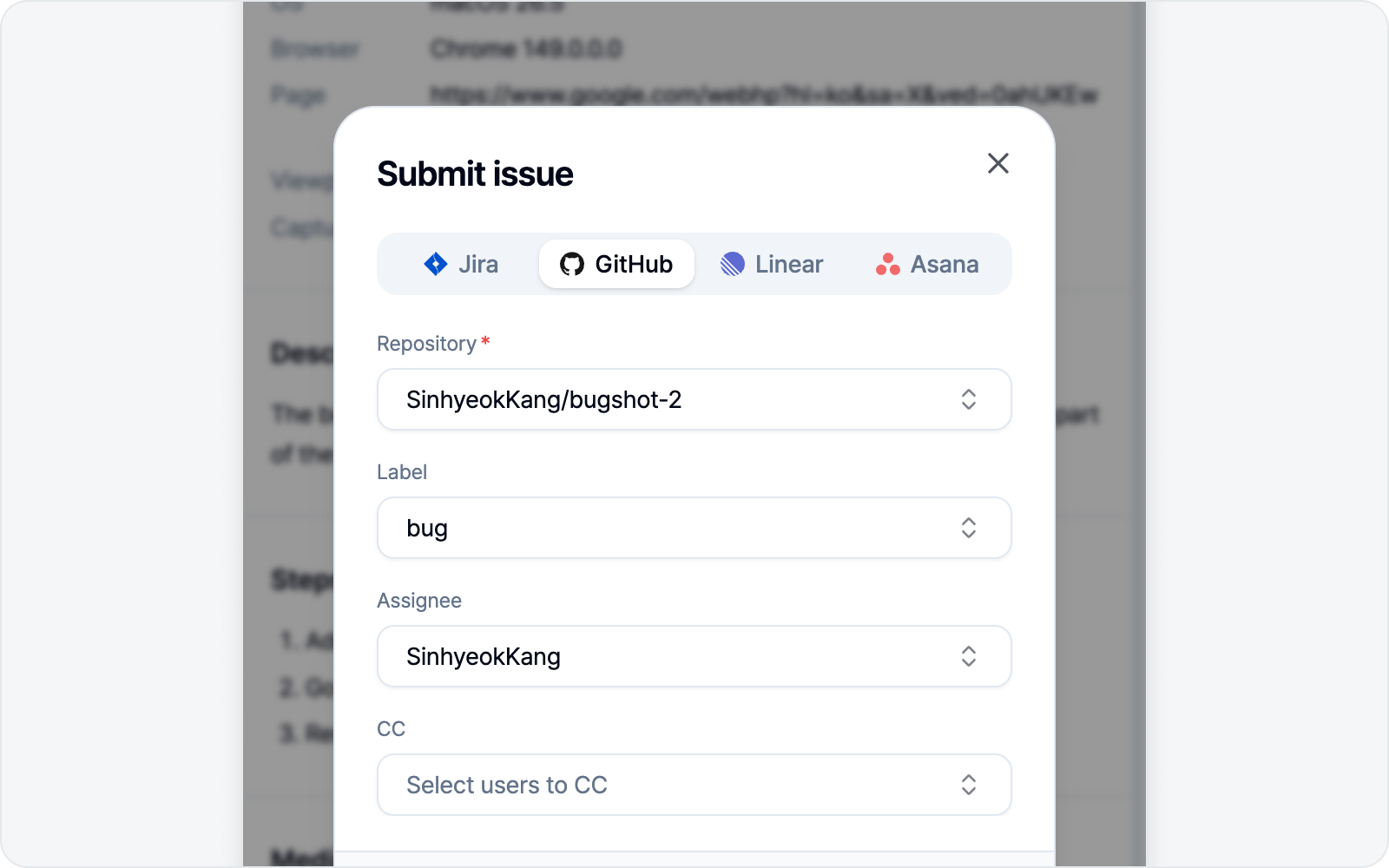 Issue submitted
Give the body a quick look in the preview, fill in the connected platform's fields (project, assignee, etc.), and hit Submit issue. A link to the created issue pops right up.
Want the details of each step? They continue in Inspect & Style, Screenshot, and Recording.