
Capture methods
There are two ways to grab an image of a bug: Screenshot, where you pick what part of the screen to capture, and Capture element, where you click a single element and it crops just that element. Either way the rest of the flow (annotate → write the issue) is identical, so start with whichever feels easier.
Screenshot
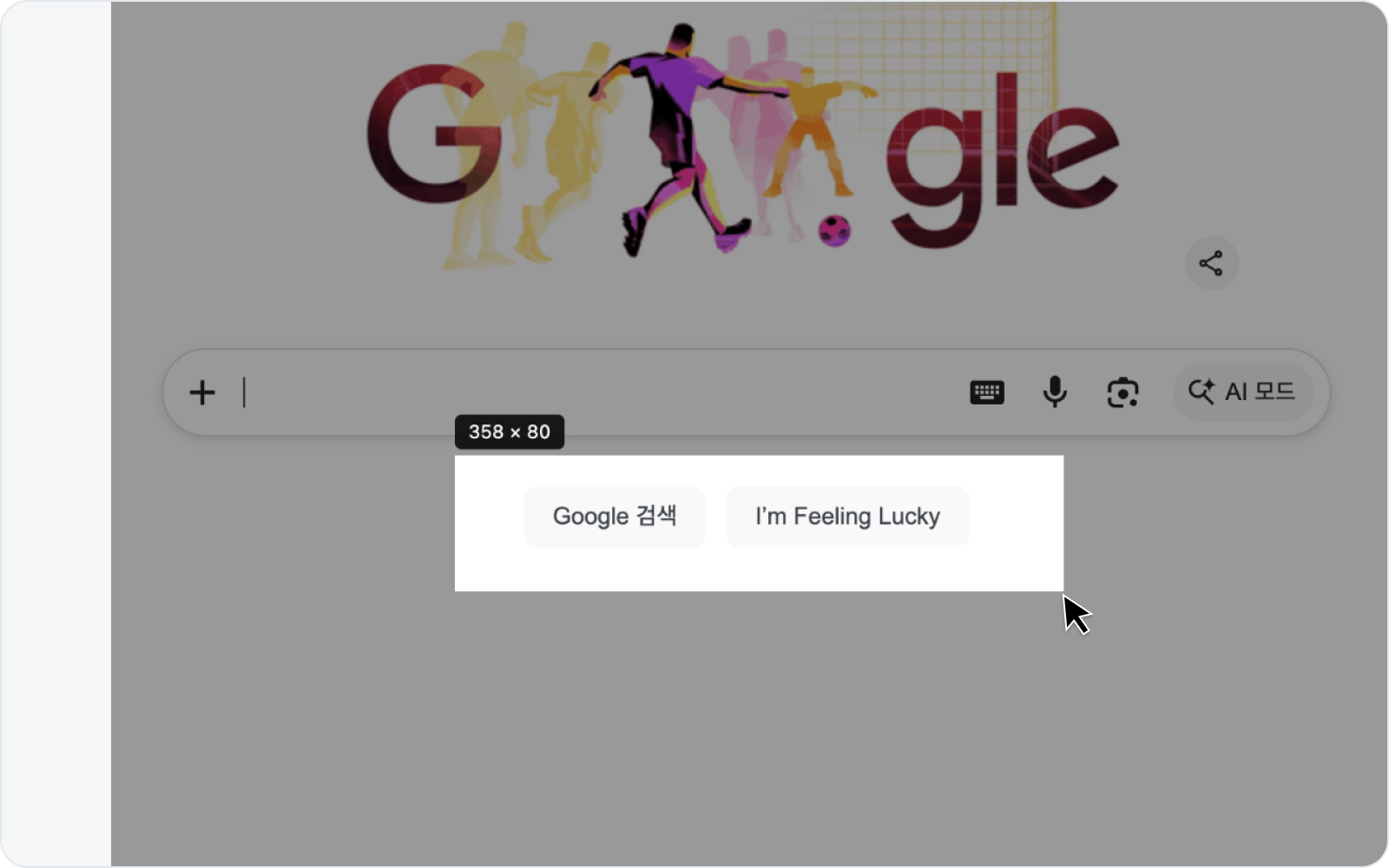 Dragging a region
In the Debug tab, click Screenshot. A crosshair appears over the page, and three capture buttons show up at the bottom of the side panel. Hover any of them to see what it does before you click.
- Area capture — the one that's on by default. Drag to select the region you want. You can crop just the part where the bug shows up, so the reader knows exactly where to look.
- Screen capture — grabs everything currently on screen, no dragging. No fiddling with the edges.
- Page capture — scrolls the page and stitches the whole thing, including everything below the fold, into one tall image.
How page capture works
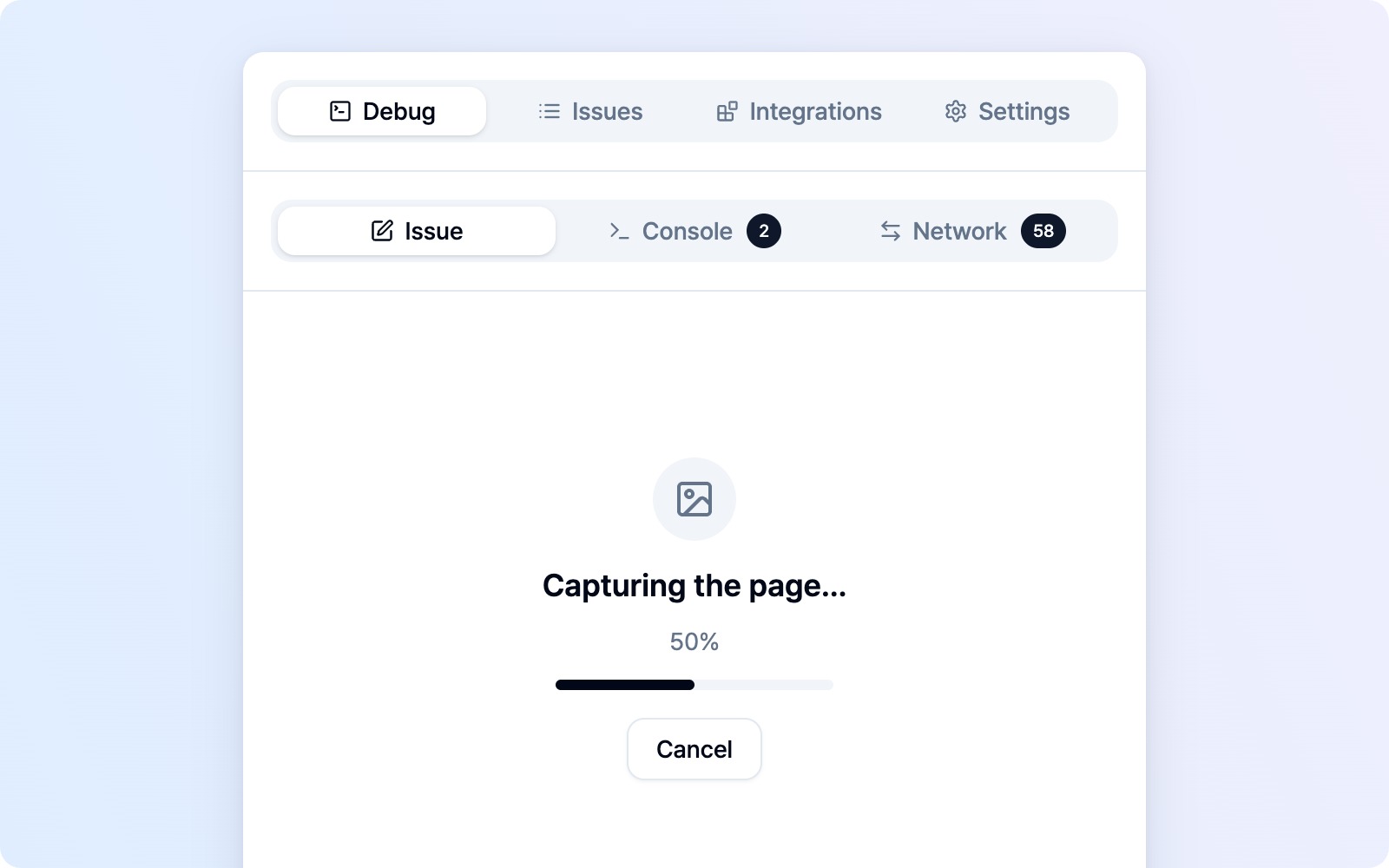 Page capture in progress
When you click Page capture, BugShot scrolls the page bit by bit, takes several shots, and stitches them into one image. You'll see the progress in the side panel, and it can take a few seconds on longer pages. Changed your mind? Just hit Cancel — the page scrolls back to where you were, so nothing to worry about.
A few things worth knowing:
- Fixed and sticky headers are kept where they first appear and hidden further down. Sticky menus are hidden only after their full content has already been captured, so nothing unseen gets dropped.
- Only vertical scrolling is stitched. Anything that overflows horizontally is captured up to the visible width.
- On endless pages (infinite scroll), BugShot stops after a certain length and lets you know that only part of the page was captured.
Clicks and scrolling (including the mouse wheel) are blocked on the page while the capture runs — if the page moved, the stitched image would come out misaligned. Everything goes back to normal the moment it finishes.
Capture an element
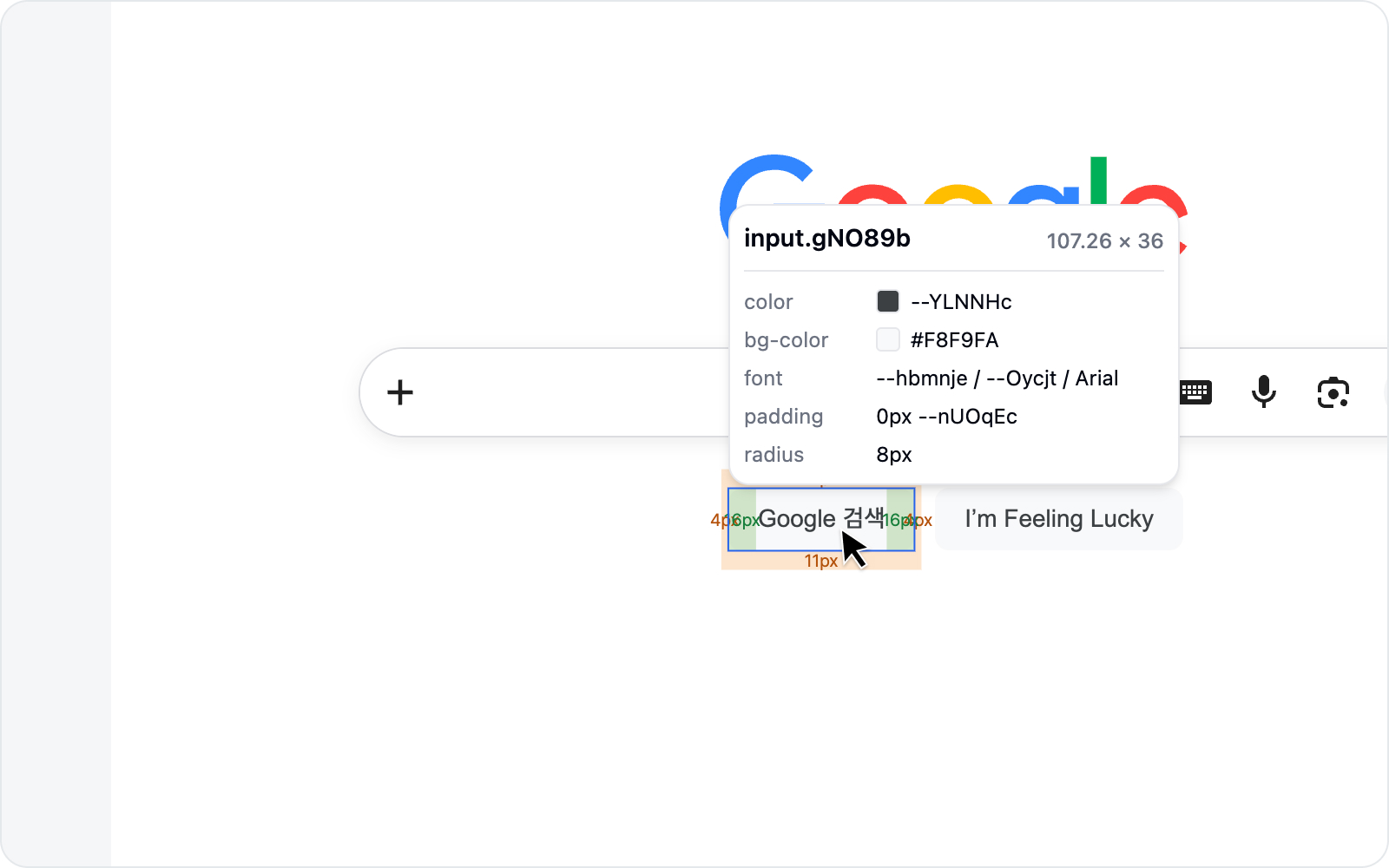 Capturing an element
In the Debug tab, click Capture element and a crosshair appears over the page. Hover an element to highlight it, then click to crop just that element's region into a screenshot. For elements with clear edges — buttons, cards — it's faster and more precise than dragging by hand.
Capture element doesn't change any styles. To pick an element and compare styles before/after, use Inspect & Style instead.
As a bonus, the captured element's DOM selector is recorded on the issue's Environment as a DOM line, so the reader knows exactly which element on the screen it was.
Output
Area, screen and element captures give you exactly what's on screen right now (viewport-based); page capture gives you the full page, scrolling and all, as a single image. Once capture is done, you move on to annotation naturally.
See Annotation for how to draw on it.