
30s Replay
Bugs never wait for you to hit record first, do they? 30s replay always keeps the last 30 seconds of your screen, so right after you spot a bug you can attach what just happened as a video in one click. It saves you from those "ugh, I should've been recording" moments.
Prerequisite: setting
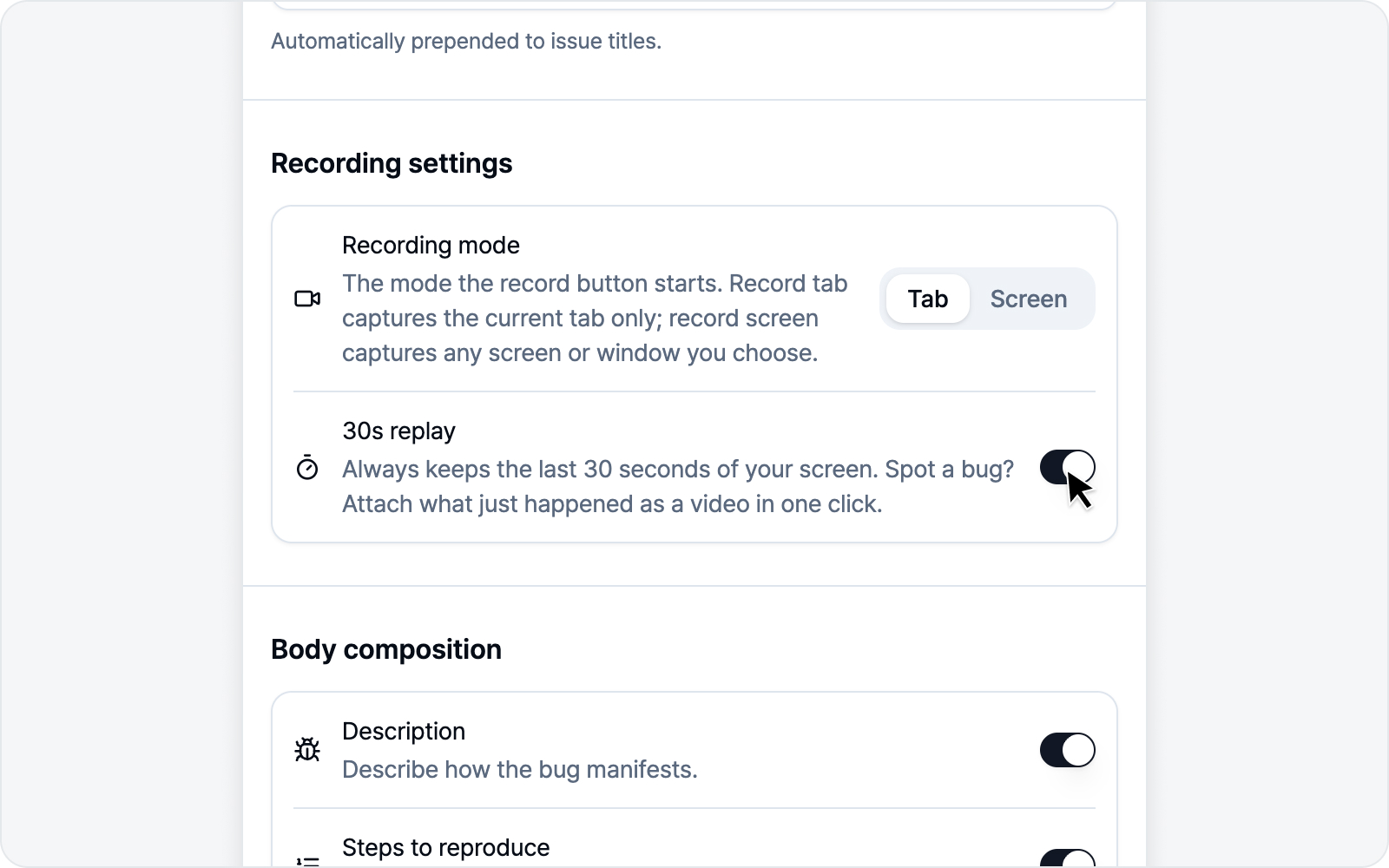 Enabling 30s replay
Replay only works once it's turned on ahead of time.
First, in Issue Settings, turn on the 30s replay toggle. The last 30 seconds start getting kept from the moment you flip it on. There's no separate permission prompt — just turn the switch on.
On top of that, even if you navigate to another page mid-task, the side panel stays open and your capture keeps going. It applies whether or not you use replay, so reproducing a bug across pages feels a lot smoother.
Using it
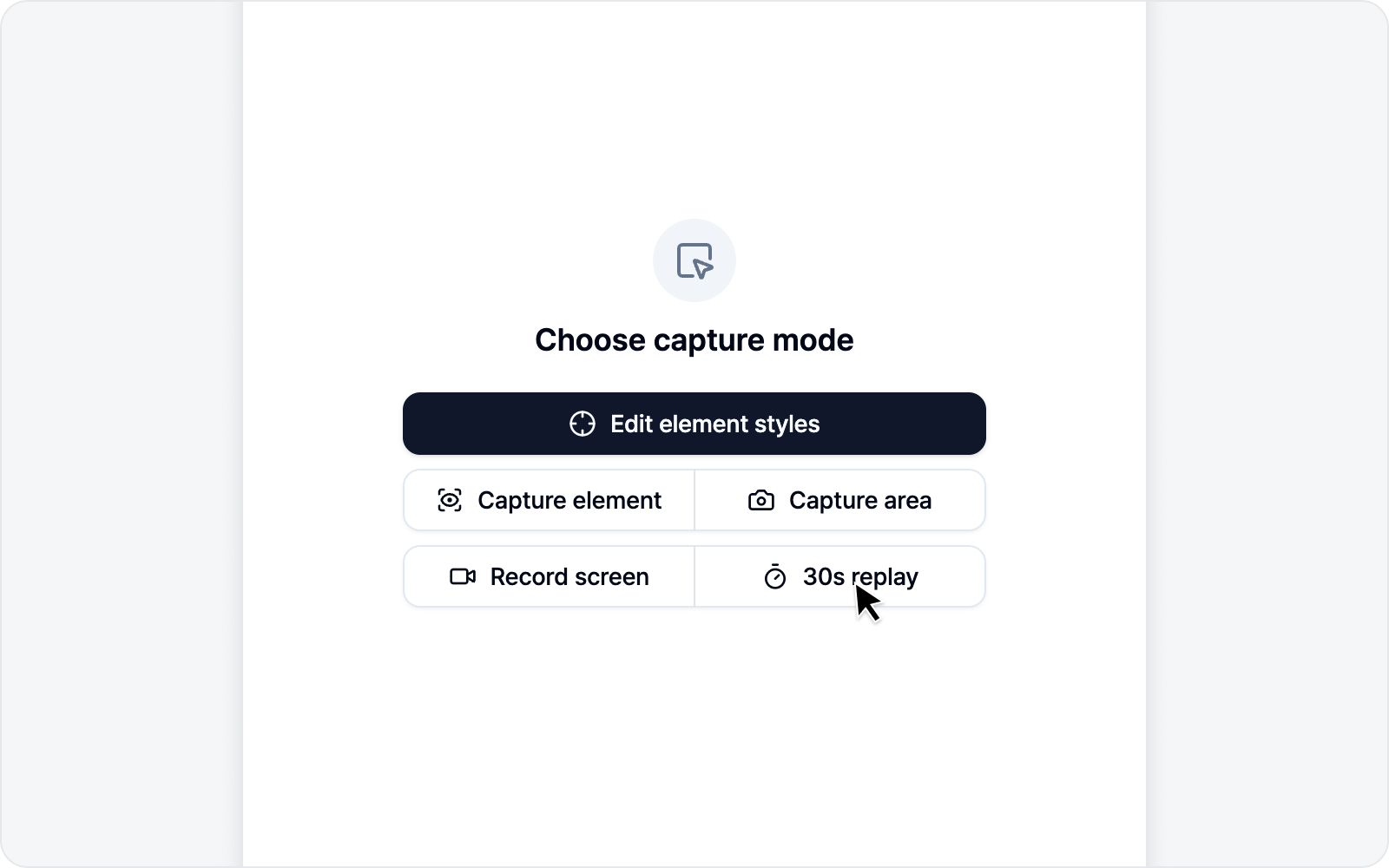 30s replay button states
Once it's ready, the 30s replay button on the debug screen pulls the last 30 seconds into a video. A quick glance at the button tells you what's going on.
- Disabled — Not turned on in settings yet. (Click it to jump to Issue settings, where you can turn it on right there.)
- Recording — The screen is being recorded. You can grab the last 30 seconds anytime.
- Encoding… — Turning the grabbed 30 seconds into a video.
- Ready — The video is made and attached to the issue.
Trimming the clip
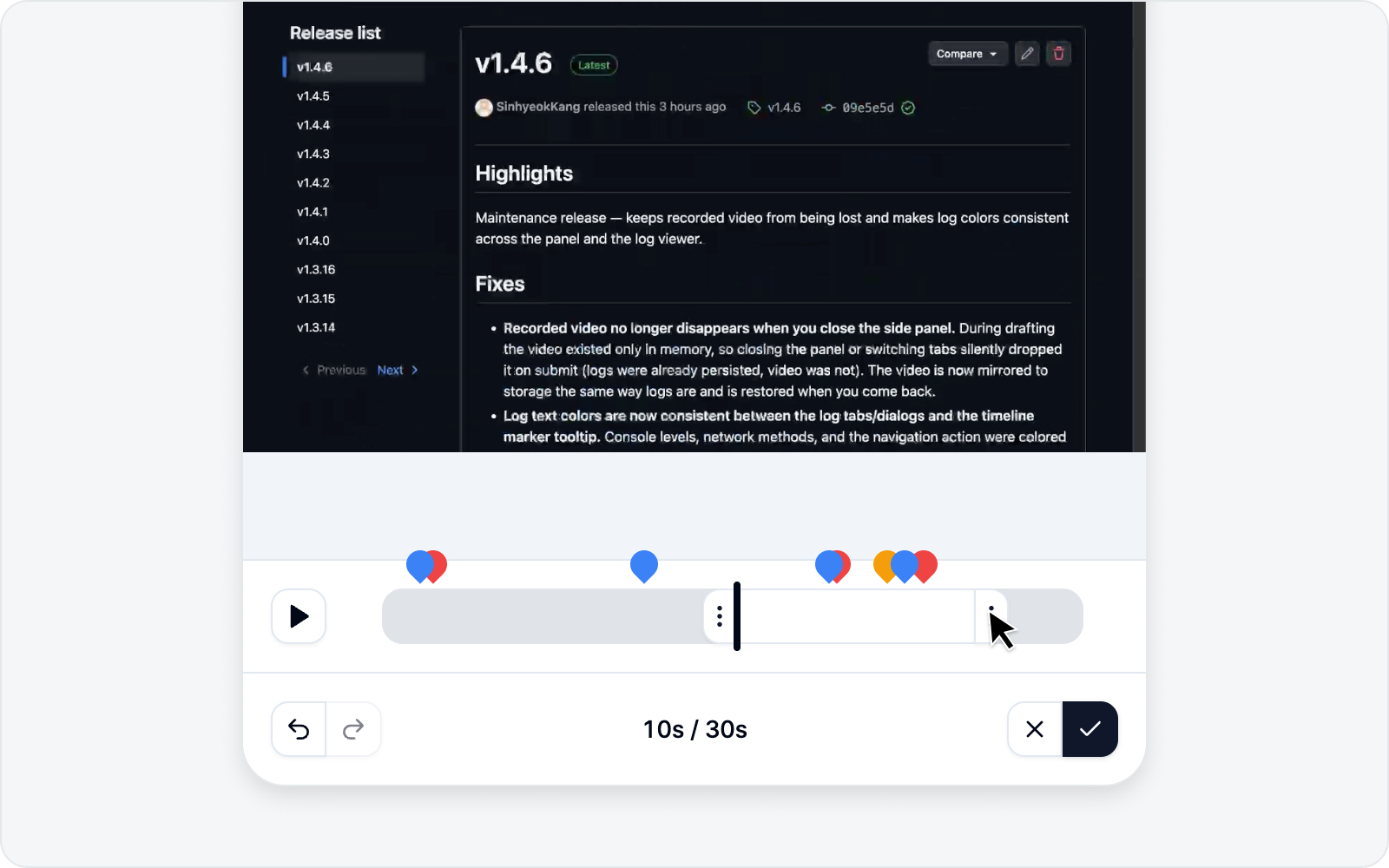 Trimming the replay clip
The bug itself usually happens in just a moment of those 30 seconds. Once the video is made, a trim screen pops up over the issue draft so you can cut the unneeded parts and keep only the bug moment. It's simpler than it sounds — trim the ends to keep only what matters.
This screen isn't just for 30s replay. It shows up exactly the same way when you stop a tab or screen recording, so you can use trimming without turning 30s replay on at all.
Drag the Start and End handles at the ends of the timeline to set what to keep, then hit Apply — the video is rebuilt to keep only that range, and the console, network, and action logs attached with it get narrowed to match. As you move a handle, the logs that will be cut go dimmed in the log tabs, so you can see what drops before you commit.
For the full walkthrough of the screen and each button, see "Trimming the clip" in Live Recording. Both capture modes use the exact same screen.
There's just one thing that differs for replay: leave the handles untouched and hit Apply to keep the full 30 seconds.
The trim screen shows up just once right after capture, and the original is cleared once you apply. Don't need to trim? Just hit Apply as is. To drop this capture entirely, hit Discard recording — you'll confirm with "Discard this recording?" and return to the start screen.
Once you apply, you move to the issue draft. Continue with Write an Issue.