
Custom Webhook
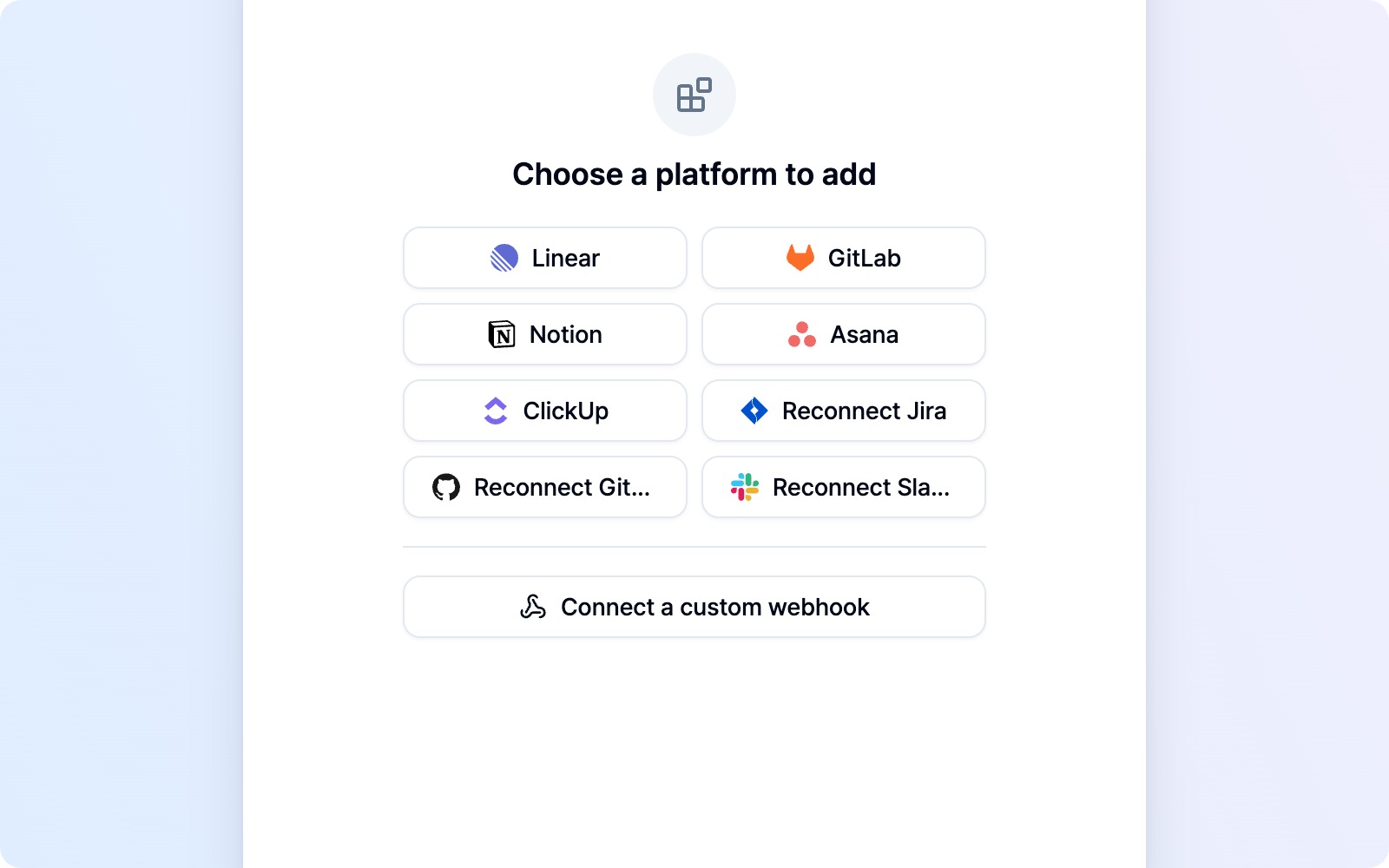 Connect a custom webhook below the divider in Add platform
Does your team use a tool outside the supported platform list, or want reports delivered straight to an internal system? Custom Webhook sends bug reports to a server you run. Captures and the report body go directly from your browser to the address you choose, without passing through a BugShot server.
Start with a receiving server and its endpoint address. If someone on your team manages the server, ask them for the address and secret. For developers building the receiver, the receiving-server contract is available in English and includes the request and response formats and a runnable example server.
Reports can contain sensitive screenshots and logs. Use a server you trust. The server operator is responsible for how received data is stored and used.
Connect and test
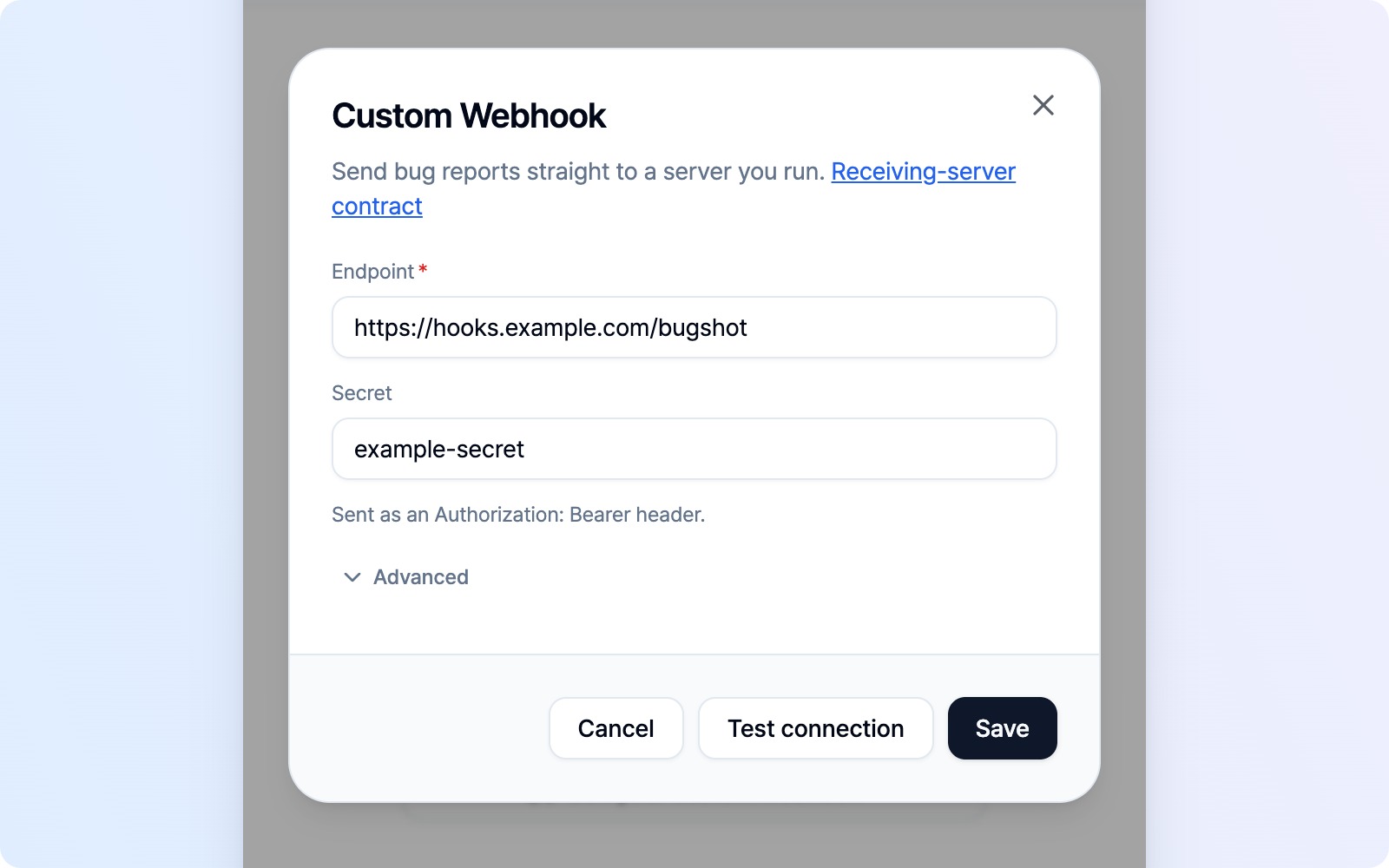 Endpoint and Secret fields, collapsed Advanced settings, and Test connection and Save buttons
- Open Integrations → Add platform, then click Connect a custom webhook below the platform list.
- Enter your receiving address in Endpoint.
- If your server requires a secret, enter it in Secret. This field is optional. Its value is sent in an
Authorization: Bearerheader, not as a signature. - Keep the default Multipart format and click Test connection to check that the server responds. This sends a small probe instead of a report; your server developer should handle it as described in the contract.
- Click Save. Testing the connection does not save your settings.
Use an https address. Private destinations such as an internal network or localhost may use http, with a warning that the request is not encrypted. BugShot does not follow redirects, so enter the final receiving address.
Once saved, choose Custom Webhook when submitting an issue. There is no project or channel to pick: reports go to the address you configured. Each teammate sets up the connection in their own browser.
Advanced settings and delivery formats
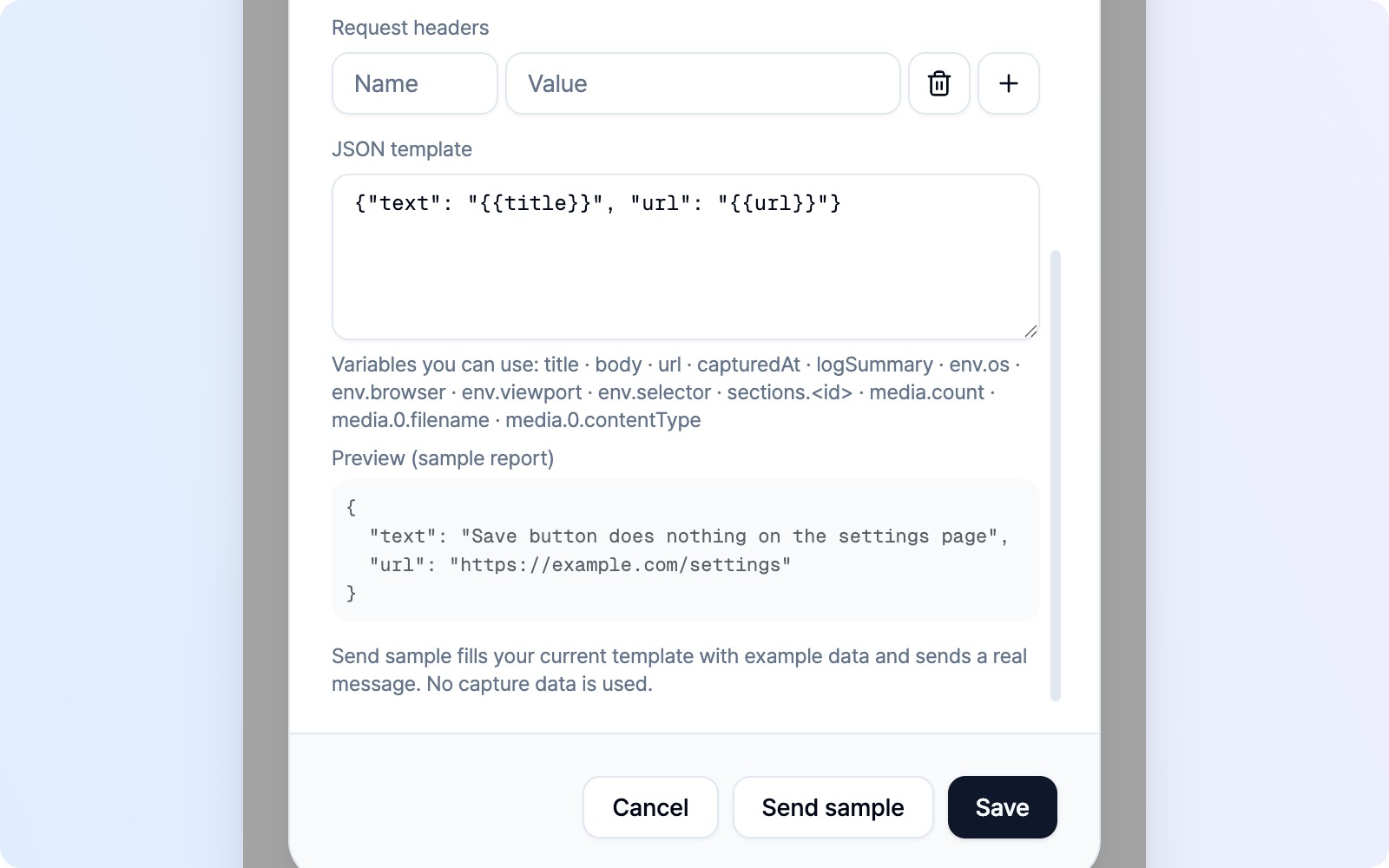 Advanced settings with JSON template selected, request headers, the template, sample preview, and Send sample
You can leave Advanced closed for the default setup. Open it when your receiver needs a different format or extra headers. If you have saved advanced values, this section opens expanded the next time you edit the connection.
| Format | What is sent | After submission |
|---|---|---|
| Multipart (default) | The body, captured images, video, log files, and attachments in one request | An issue-list entry links to the address returned by your server |
| JSON template | A JSON body shaped for the receiver. No media is sent | No issue-list entry is created |
Add Request headers as name/value pairs if your server needs them. Headers the browser cannot send and duplicate names are flagged when saving. An explicit Authorization header takes precedence over the Secret field.
Use JSON template for hooks that expect a particular format, such as Slack or Discord. Insert variables such as {{title}} and {{body}}, then check the available variables and Preview (sample report) below the field. Invalid JSON and unsupported variable names are flagged when saving. The receiver contract lists the variables and full delivery requirements.
With JSON template selected, Send sample replaces Test connection. It fills your current template with example data, without using your current capture. It can create a real message at the destination, so check the preview before sending. Click Save to keep your settings.
A timeout does not mean nothing arrived. Check the receiver before sending the report or sample again.
Edit settings and check results
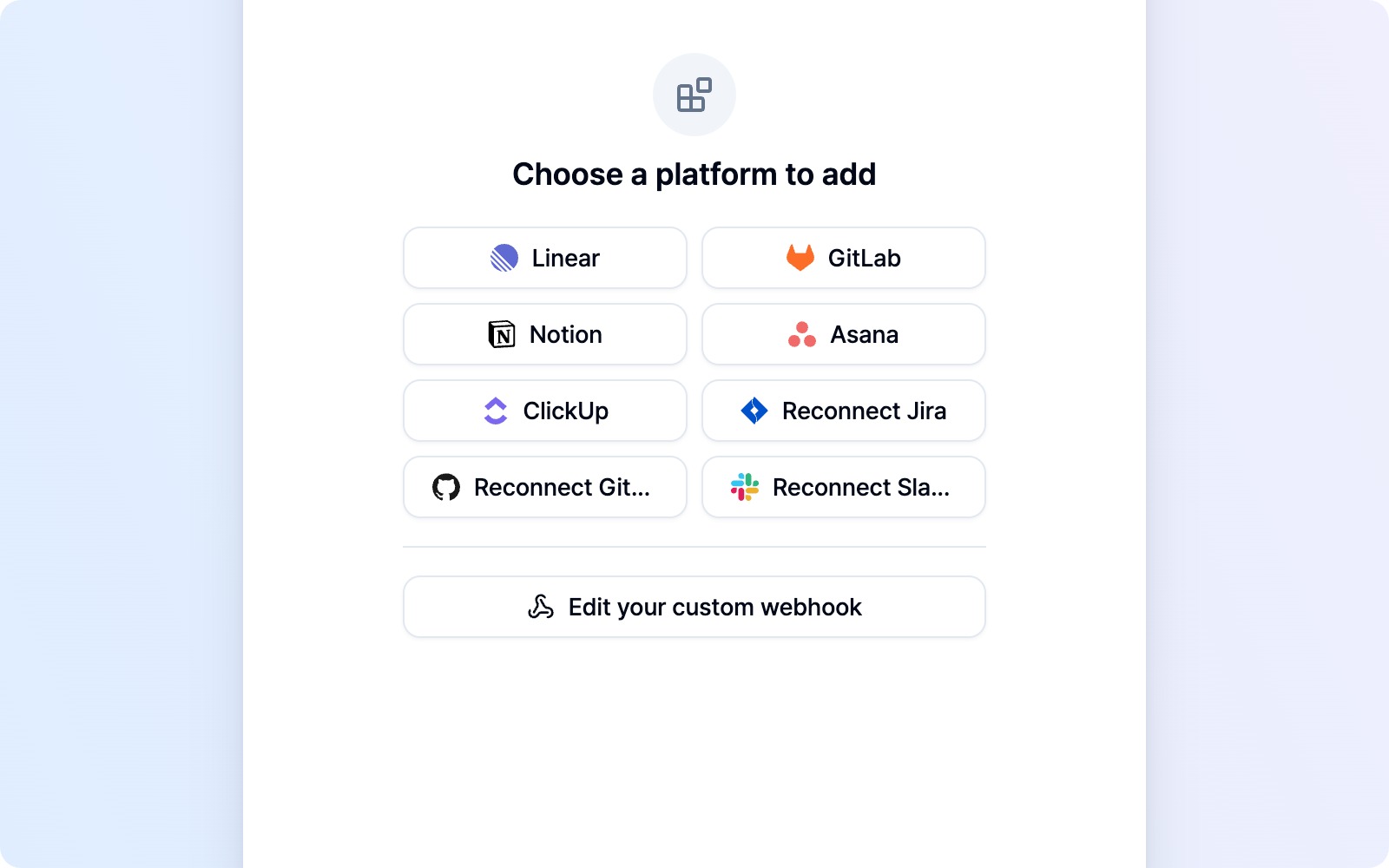 Edit your custom webhook in Add platform after connecting
To change the address, secret, or template, open Integrations → Add platform → Edit your custom webhook. Your saved values are filled in, so just change what you need and click Save.
Reports submitted with Multipart appear in the issue list as Submitted. Click the card to open the address returned by your server. Server-side progress is not synced back to BugShot; check that address for updates. JSON template submissions leave no issue-list entry, so check the destination for the result.
If a connection or submission fails, follow the message to check the address and secret. Even if the server responds, a Multipart response missing the required fields is treated as a failed submission, and your original report is retained. Ask your server developer to check the response requirements in the contract.